
For parents
Where your child is and how they’re doing at school — in one app
Did they get to school, where are they now, what grade did they get today — EduGuard sends it to your phone and to Telegram on its own. Location is visible only with your child’s consent.
- Grades and attendance always free
- 3-day free trial
- SOS alerts are always free
- No ads
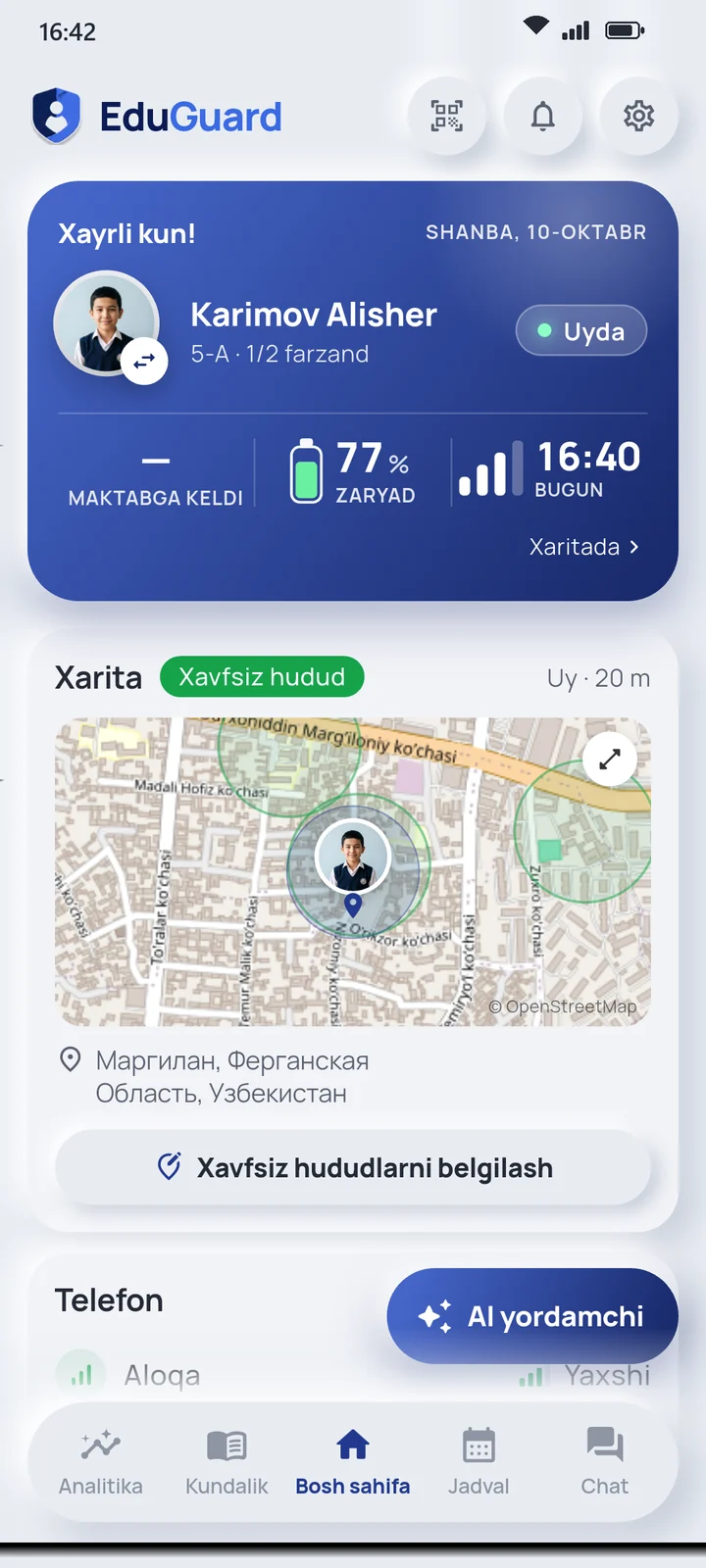
Features
What you need to know arrives on time
No need to keep opening the app. When something important happens, you get an alert.
Live location
You see where your child is on the map — if they have allowed it.
Safe zones
Home, school, clubs. You get a notification when your child enters or leaves a zone.
SOS
Your child presses one button, and the alert with their location reaches you in the app and on Telegram.
Grades and attendance
New grades and attendance reach you as soon as the teacher enters them. The timetable and homework are here too.
Talk to the teacher
Message the homeroom teacher in the app and read school announcements in the same place.
Screen time
See how much time goes into each app and, if needed, limit an app for a while. This also requires your child’s permission.
Free ratings
Your child’s place in the class, grade and school — for the week and the term. Other children’s names are hidden, only pseudonyms are shown.
Inside Telegram
Today’s status, grades and timetable right in Telegram: send “/app” to @Edu_GuardBot.
With your school
These sections appear in the app if your school uses them.
Meals and allergies
What’s for lunch today is shown on the home screen. Mark your child’s allergies, and the app warns you when the menu contains one. The school management and kitchen can see them.
School requests and clubs
When a permission slip, a poll or a meeting invitation arrives, you answer for each child with one tap. You can also sign your child up for clubs here and see how many places are left.
Payments to the school
If the school charges tuition, the “Payments” section shows charges, the balance due, receipts and the contract. A reminder comes before the due date. The school itself explains how to pay.
New device
Coming soonA GPS watch for kids without a phone
Your child doesn’t use a phone? A GPS watch with its own SIM card — SOS button, location and safe zones in the parent app.


- Blue
- Pink
Or tap “I’m interested” in the parent app — you’ll be among the first to hear when the watch is available.
Price and release date will be announced later. The images are examples — the watch on sale may look different.
SOS button
Your child presses the button on the side of the watch — your phone sounds a loud alarm, just like an SOS from the app, and a message arrives in Telegram.
Location in the app
You see where your child is in the parent app — on the same map as with a phone.
Safe zones
Home, school, club: you get a notification when your child arrives or leaves.
Calls to parents
Your child can call you from the watch.
Works without a phone
The watch has its own SIM card — your child doesn’t need a phone.
Set up in the app
You link the watch to your child in the parent app.
Consent
Not covert tracking — safety you agree on with your child
Your child chooses what to share in their own app and can change it at any time. They can also see who is connected to them.
Your child decides
Only the student can turn on location, screen time and the SOS camera — and can change it at any time.
Camera only during SOS
At all other times the camera and microphone are off. Parents cannot turn them on remotely.
Your consent
When linking, you choose which data you consent to. Change or withdraw it in Settings → “Parental consent”. The SOS signal reaches you regardless.
Delete at any time
You delete your account in the app itself: Settings → “Delete account”. Your child’s account — only with your confirmation.
Connecting
How you connect to your child
Every connection is verified: codes work once, and requests are reviewed by the homeroom teacher.
- 01
Install the app
Choose the “Parent” role and sign up with your own name and phone number.
- 02
QR or card code
Scan the QR code in your child’s app or enter the code from the card the school gave you. A code works once.
- 03
Or send a request
No QR and no card? Send a request from the app. The homeroom teacher will review it.
- 04
Set it up
Mark safe zones and connect Telegram. You can also invite the second parent.
FAQ
Questions parents often ask
Can’t find an answer? Message us on Telegram — a real person will reply.
Can my child see who is connected to them?
Yes. The student app shows who is connected, and the student can remove a connection.
Can the second parent connect too?
Yes. Invite the second parent in settings. Alerts reach both of you at the same time.
What if the phone is off or there’s no internet?
Location and SOS depend on the internet, GPS and battery. If the phone restarts, tracking turns back on by itself. The app always shows when the data was last updated.
EduGuard does not replace emergency services: if life or health is at risk, call 112 right away.
What is free, and what does a subscription add?
The diary, grades, timetable, attendance, ratings, the SOS signal and location are always free — you never pay to see grades or attendance. A subscription unlocks SOS photos and audio, continuous live location, movement alerts and the weekly AI summary.
First child 15,000 UZS/month, second 10,000 UZS/month, third and fourth free. If the school sponsors it, families pay much less. The subscription never renews automatically.
How do I pay?
Via Payme or Click: on the payment page or in the Telegram bot. If your school has a contract with EduGuard, you don’t need to pay.
What data do I consent to?
When linking your child, you pick from a list: location and movement history, screen time, SOS photos and audio, the AI tutor. Blood type is a separate, optional consent. Data you do not select is neither collected nor shown to you.
Even if you select nothing, grades, attendance and the SOS signal still work. Change or fully withdraw consent in Settings → “Parental consent”.
Is my child’s name visible in the ratings?
No. Other students and parents see them only under a pseudonym with an animal icon, and the pseudonym changes every term. Only teachers and the director see the name. Ratings are free.
How do I delete my account?
In the app: Settings → “Delete account”. If your child wants to delete their account, the request comes to you first: approve or decline it in Settings → “Deletion requests”. More: deleting your account.
Can I check it in Telegram?
Yes. Link Telegram in the app, then send “/app” to @Edu_GuardBot: your child’s day, grades and timetable open right inside Telegram.
Getting started takes one message.
We’ll help you install the app and get connected. Parents and schools alike.
Message us on Telegram