For schools and principals

School, teachers and parents in one system

Attendance, grades, announcements and parent communication — on the phone and in the browser. In an emergency, teachers check off every student on a list.

  • The panel runs in a browser
  • Class lists import from Excel
  • No double entry with eMaktab
  • Free for parents with a school contract
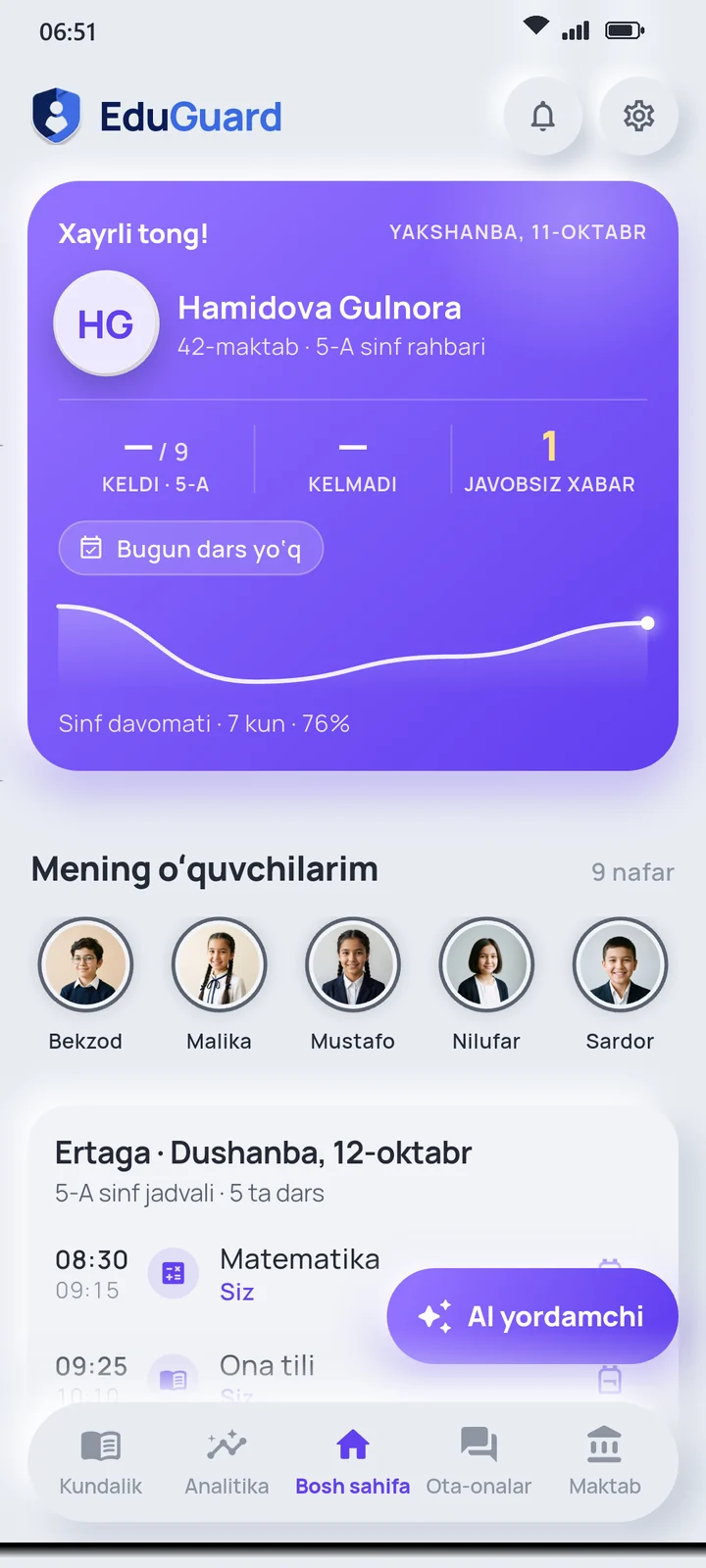
Teacher app, home screen: my students, attendance, today’s lessons and class map

For principals

The whole school in one panel

The school panel opens in a browser, with nothing to install. The principal sees the whole school; a homeroom teacher sees their own class.

  • School overview

    Classes, students, teachers and which parents have connected, all in one place.

  • Lists from Excel

    Import the student list from an Excel file and assign homeroom teachers. No passwords are handed out: everyone signs in with a one-time code.

  • Parent cards

    A card with a QR code is printed for every student. With that code, a parent connects to their own child and no one else.

  • Announcements and messages

    Send announcements to the whole school or only to teachers. Homeroom teachers message the parents of their class.

  • Gradebook view

    See grades and attendance by class, subject and date, and export them to CSV.

  • Homework load

    A weekly table shows how much homework each class got on each day.

  • Import from eMaktab

    Upload the grades, attendance and timetable file exported from eMaktab to the panel or send it to the Telegram bot. Review first, then save. No eMaktab password is needed.

  • Free ratings

    Class, grade and school ratings are recalculated every night. The director and teachers see names; students and parents see pseudonyms.

Coming soon Knowledge competitions between classes and schools.

School management

Tuition, staff and the canteen in the same panel

Instead of notebooks, Excel sheets and paper forms. The principal manages everything in the panel; teachers and parents respond in the app.

Finance

Tuition and extra services

See at a glance who owes how much and who is behind on payments.

  • Assign each student a tariff, extra services and discounts; monthly charges are generated automatically
  • Debtors list: class, amount owed and days overdue
  • Payments are entered in the panel or matched from a bank statement by contract number
  • The accountant signs in with a separate role and cannot see grades, chats or location

Printable

  • Contract
  • Receipt
  • Reconciliation statement

Receipts are not fiscal cash-register receipts.

Reminders to parents

  1. 3 days before the due date
  2. On the due date
  3. Weekly while a balance is due

In the app and Telegram, automatically.

Panel: principal, accountantParent app: “Payments”

Staff work

Tasks, requests, cover

Tasks, orders and meeting notices go straight to teachers’ phones.

  • Teachers mark them “Done” or “Acknowledged”, and you can see who hasn’t
  • Leave, sick-leave and time-off requests are filed in the app; the principal decides in the panel or the app
  • If a teacher is absent, a substitute is assigned to their lessons and reminded the evening before

Panel: principalApp: teacher, principal

Meals

Menu and allergies

The weekly menu is built in the panel, with allergens marked for each dish.

  • Parents are notified when the menu is published
  • Parents mark their child’s allergies in the app and see a warning when the menu contains one
  • A printable allergy list for the kitchen

Panel: principal, accountantApp: parent, student

Requests and clubs

Working with parents

Permission slips, polls and meeting invitations go to the app. Parents answer separately for each child.

  • See by class who hasn’t answered; a reminder goes out automatically before the deadline
  • Club applications come in from the app and the principal approves them; places left are shown
  • An approved paid club is added to the monthly bill from the next month

Panel: principal, homeroom teacherApp: parent

Reports

Term, attendance, enrolment

Calculated from grades and attendance in the school diary, so nothing is counted by hand.

  • Term: pass rate and quality rate; top students, good students, students with a “3” and failing students
  • Attendance and enrolment: classes, students, connected parents
  • Excel: one file with a separate sheet for each class. Printing works too

Principal: whole schoolHomeroom teacher: own class

For teachers

Let teachers spend their time on teaching

Less paperwork: attendance, grades and reports take a few taps on the phone.

  • Attendance

    Mark each student in one tap. One button for “Everyone’s here”.

  • Voice gradebook

    Say “Alisher five, Bobur absent”: marks and attendance go into a table, and you check them before saving. It can also read a photo of a paper register.

  • Reports

    Timetables, grades and attendance as PDF or Excel files.

  • AI assistant

    Prepares lesson plans, tests, homework and handouts. Save the result as a PDF, Word or Excel file. The teacher has the final say.

  • Parent communication

    Announcements, class chat and video calls.

  • Personal time

    Set your working hours: messages outside them arrive as one notification in the morning. Parents can send up to 2 urgent messages a week.

What the AI assistant can do

School safety

Ready for an emergency in advance

In an earthquake, fire or other danger, knowing quickly where every student is matters. Drill mode lets you practise it in advance.

  • Emergency roll call

    In an earthquake or fire, teachers mark each student on a “Safe” list, and their parents get a message. There is a drill mode too.

  • SOS

    When a student presses SOS, the alert reaches their parents right away. The homeroom teacher and the principal see it too.

  • Concern box

    Students can write without giving their name. Only the principal and the school psychologist read it.

  • Who sees what

    Each role sees only the data it needs. Neither the principal nor subject teachers can see location.

Getting started

How a school joins

We help at every step: uploading lists, printing cards and connecting teachers.

  1. 01

    Introduction

    You message us on Telegram or call, and we show you the school panel.

  2. 02

    Lists

    You import student lists from Excel, and teachers receive a sign-in code.

  3. 03

    Cards

    You print the parent cards and hand them out through homeroom teachers.

  4. 04

    Up and running

    Parents connect, and attendance and grades reach them on time.

Pricing for schools

If a school signs a contract with EduGuard, premium is free for its students’ parents. The price depends on the number of students and the term; we send a written quote.

Sponsorship

A sponsor can also cover the cost, for example a company or the local administration. If the school sponsors it, parents pay much less.

SOS is never switched off

Even when a subscription ends, the SOS alert and location keep working.

FAQ

Questions school leaders ask

Can’t find an answer? Message us on Telegram — a real person will reply.

How do I sign in to the school panel?

Through a browser, on a computer or phone. The principal and teachers sign in with their own login and password; there is nothing to install.

What can a teacher see?

A homeroom teacher sees the grades, attendance and SOS alerts of their own class, and location only with the student’s permission. A subject teacher sees only the grades and attendance of the classes they teach.

What does the accountant see?

The accountant signs in to the panel with a separate role and sees only the Finance and Meals sections. Grades, chats and location are not visible to them. The principal adds and removes accountants.

Where is the data stored?

The database runs on Google Firebase servers in Europe, in Belgium and the Netherlands. Sign-in details and phone numbers are stored in the USA. Data is never sold or used for advertising. More: privacy policy.

Do you help with getting started?

Yes. We help upload lists, print cards and connect teachers. If parents have questions, they can message us on Telegram too.

How much does it cost for a school?

The price depends on the number of students and the term; we send a written quote. With a contract, parents of the school’s students get premium for free. SOS alerts, the diary and attendance are always free for everyone.

Do parents pay tuition through the app?

No. Parents pay the school as usual: at the cashier’s desk or through the bank. The accountant enters the payment in the panel or matches it from a bank statement by contract number. Parents see charges, the balance due, receipts and the contract in the app’s “Payments” section.

Does data from eMaktab have to be entered again?

No. The principal or homeroom teacher uploads the Excel file exported from eMaktab to the school panel or sends it to the @Edu_GuardBot Telegram bot: grades, attendance and the timetable move into EduGuard. Everything can be reviewed before saving — in Telegram, in the mini app. No eMaktab login or password is needed. Uploading the same file again creates no duplicates, and entries a teacher made in EduGuard are left untouched.

Parents are not notified about past days.

To send the file via Telegram, Telegram must be linked in the EduGuard app first.

Do ratings compromise students’ privacy?

No. Students and parents see others only under pseudonyms; only teachers and the director see names. A student needs at least several grades to be ranked — a single “5” cannot put anyone in first place. Ratings are free.

What documents does the AI assistant prepare?

Lesson plans, tests (with an answer key), homework, quizzes and handouts. Save the result as a PDF, Word or Excel file or as an image — the file is created on the phone. The teacher reviews and edits the document.

What if the service goes down?

Services are checked automatically every 5 minutes and their state is shown on a public page. School contracts come with a service level agreement (SLA): a 99.5% monthly uptime target and a response within 30 minutes, day and night, to a critical issue (for example, if an SOS is not delivered).

EduGuard does not replace emergency services: if there is danger, call 112 right away.

We’ll show you how it works for your school.

We’ll demo the panel and answer your questions. Message us on Telegram or call.

Request a demo