Parent
Where your child is, whether they made it to class, what grade they got
- Live location and safe zones
- Grades, attendance and timetable
- SOS and Telegram alerts
Parent · Student · Teacher
EduGuard brings parents, students and teachers together on one smart platform.
Product
Everyone gets what they need: parents get peace of mind, students get structure, teachers get time back.
The problem
 EduGuard · TodayLive
Did they make it to class?
What grade did they get today?
Where are they now?
Where did they go after school?
What happens in an emergency?
Example: notifications over one day.
EduGuard brings all of this onto one platform.
Ecosystem
Information reaches the right person at the right time. And only them.
EduGuardFor parents
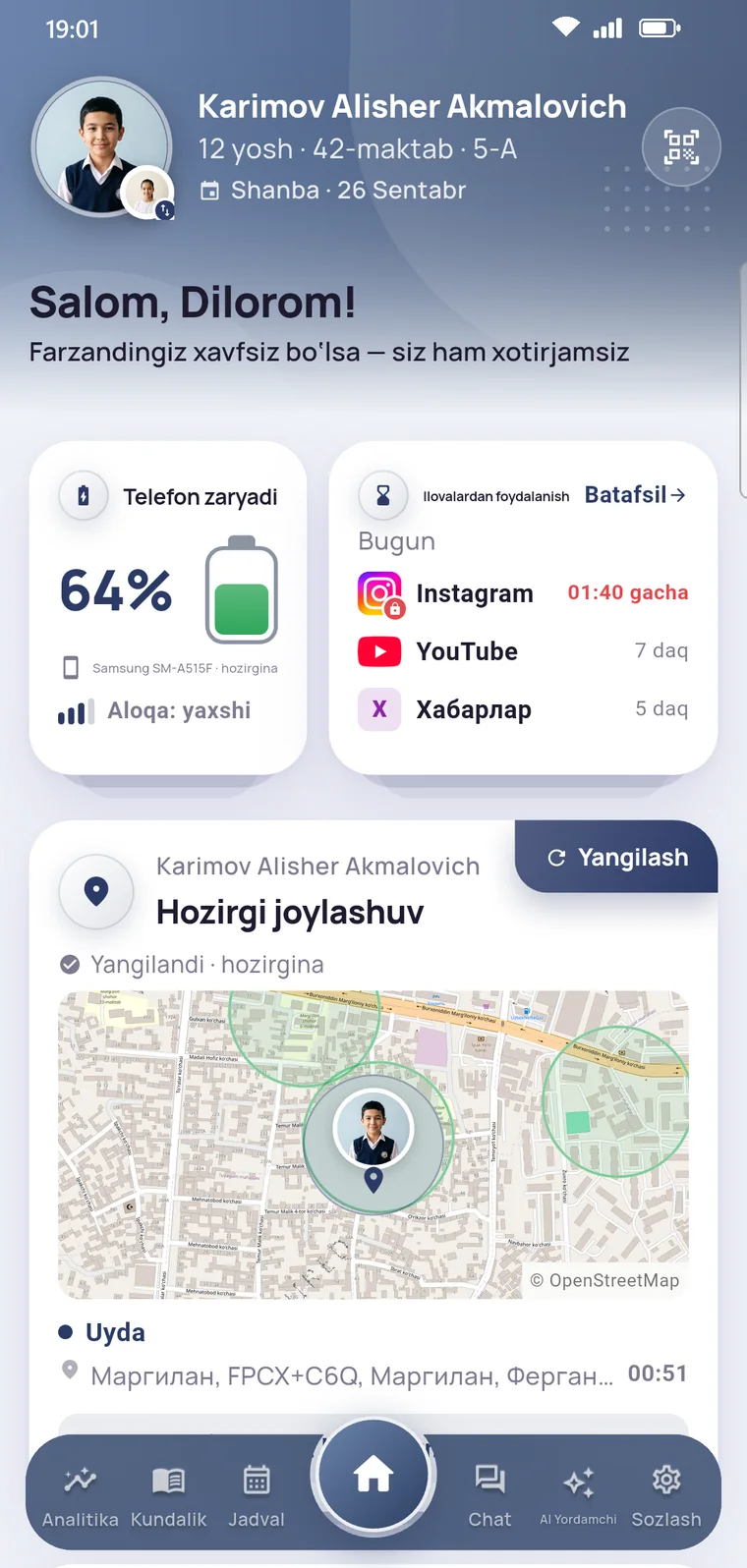
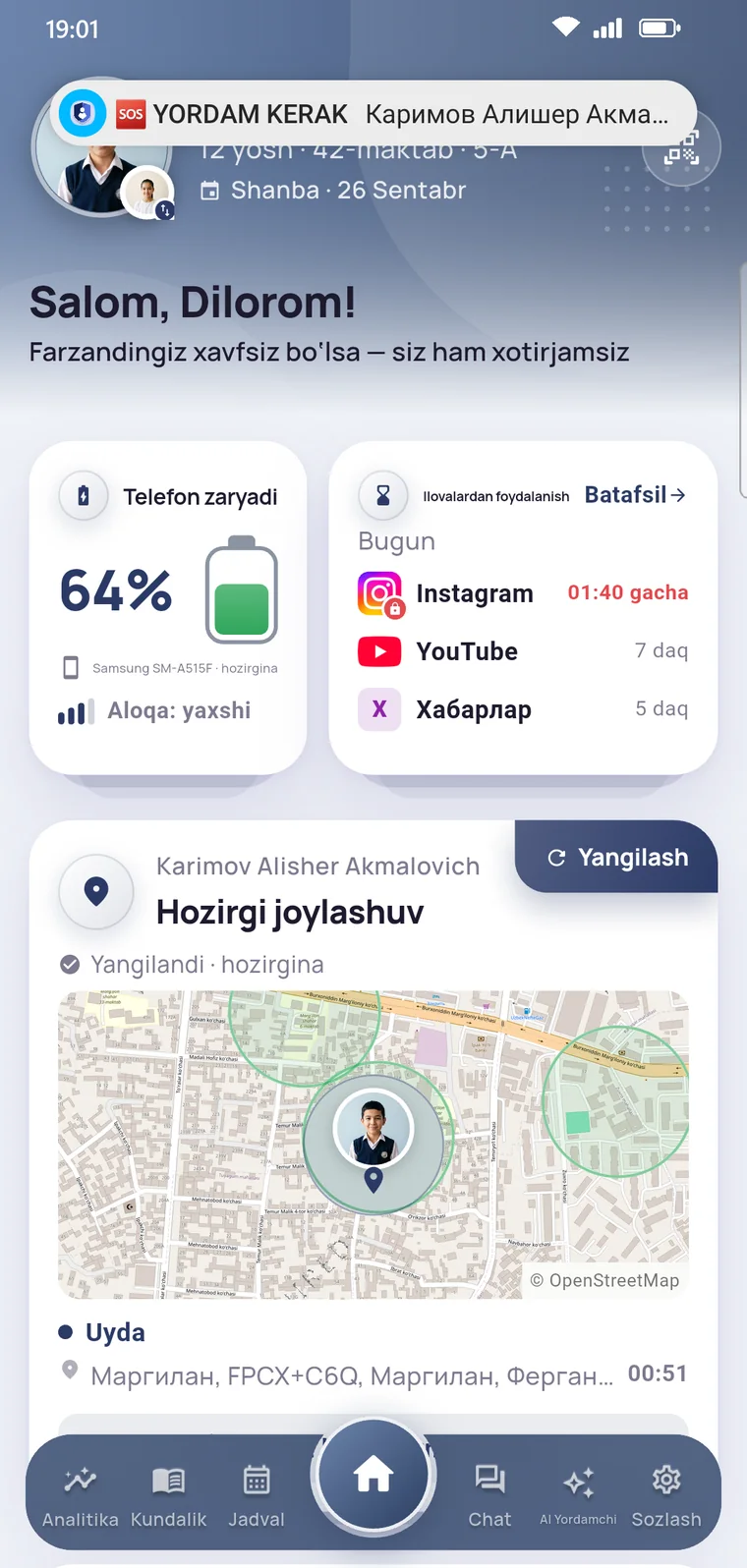
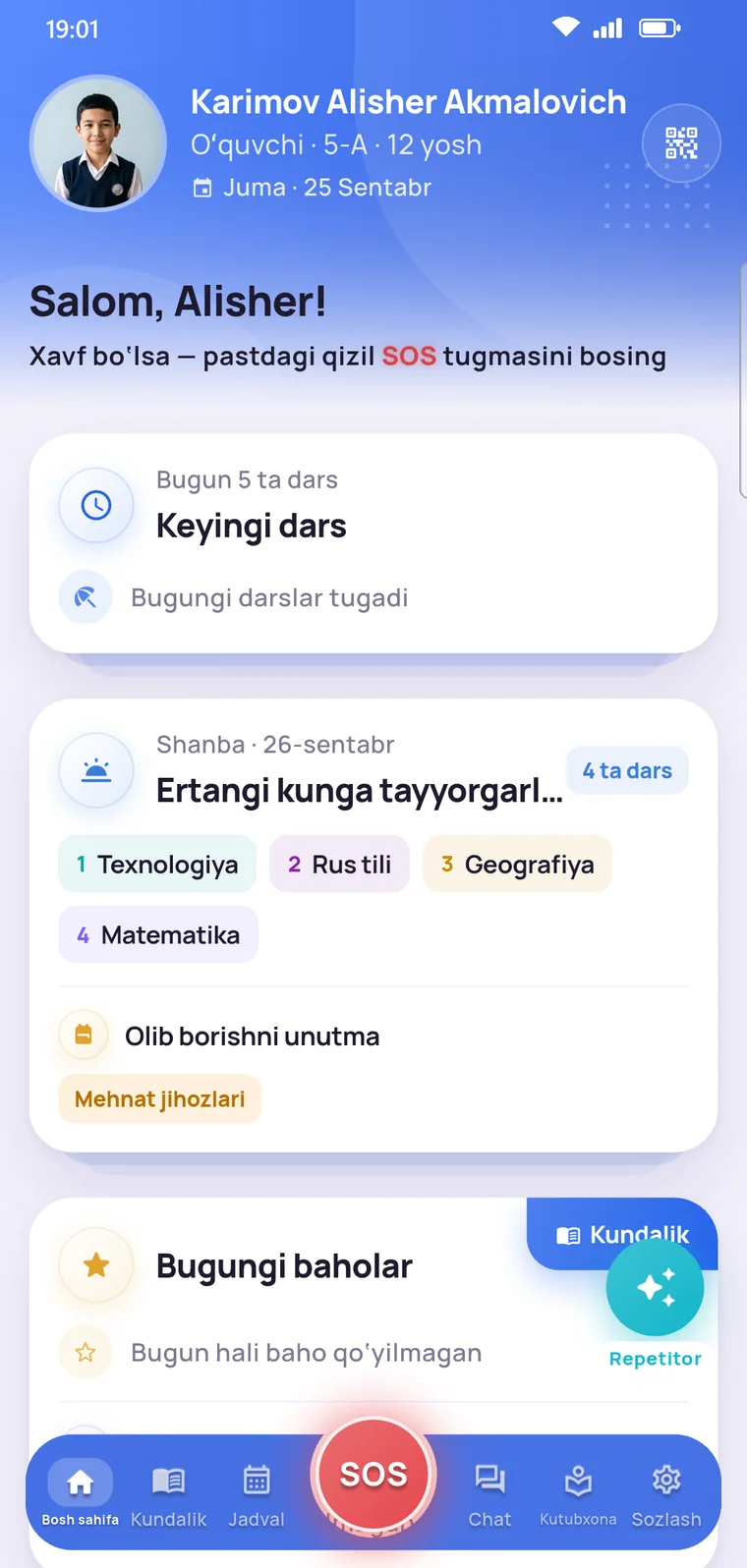
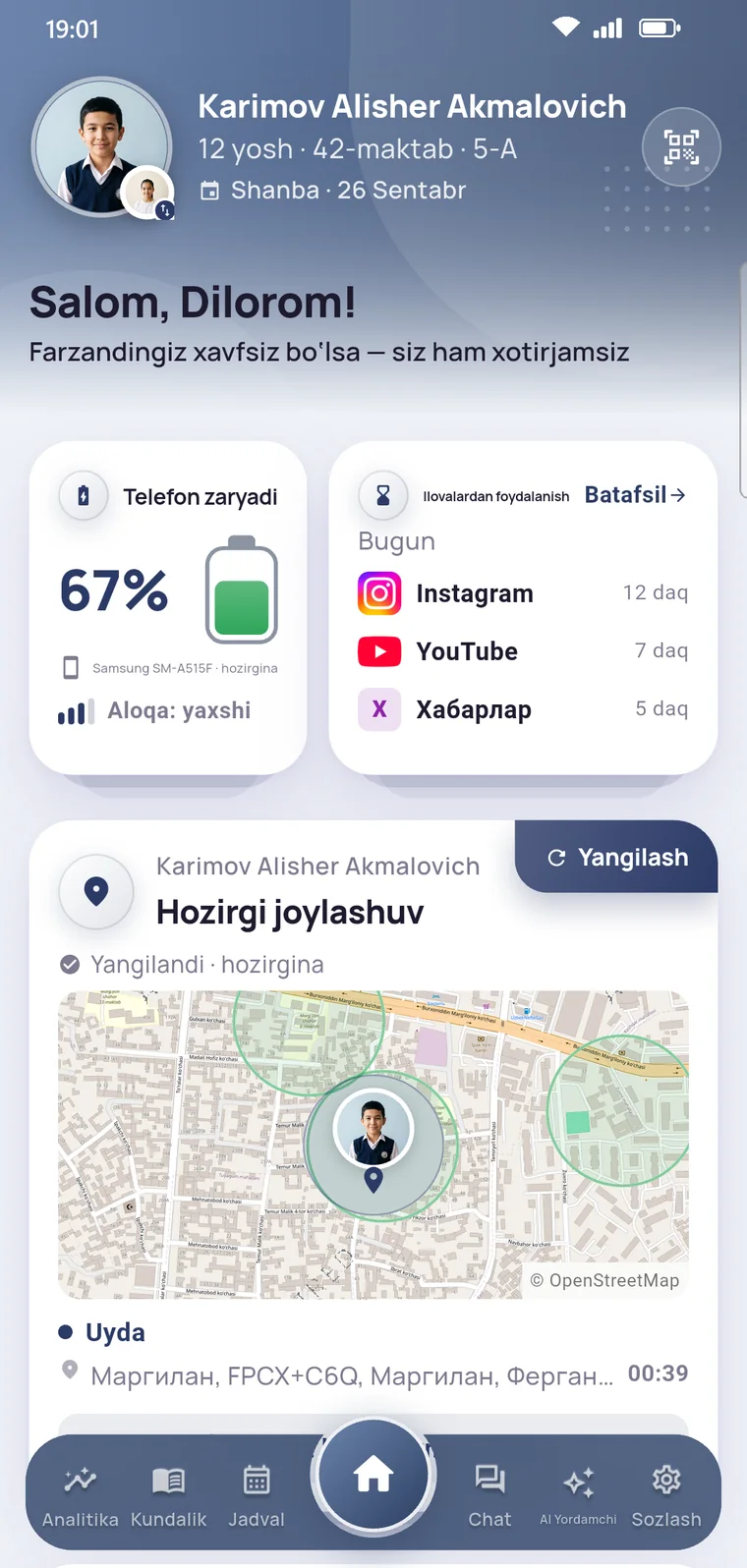
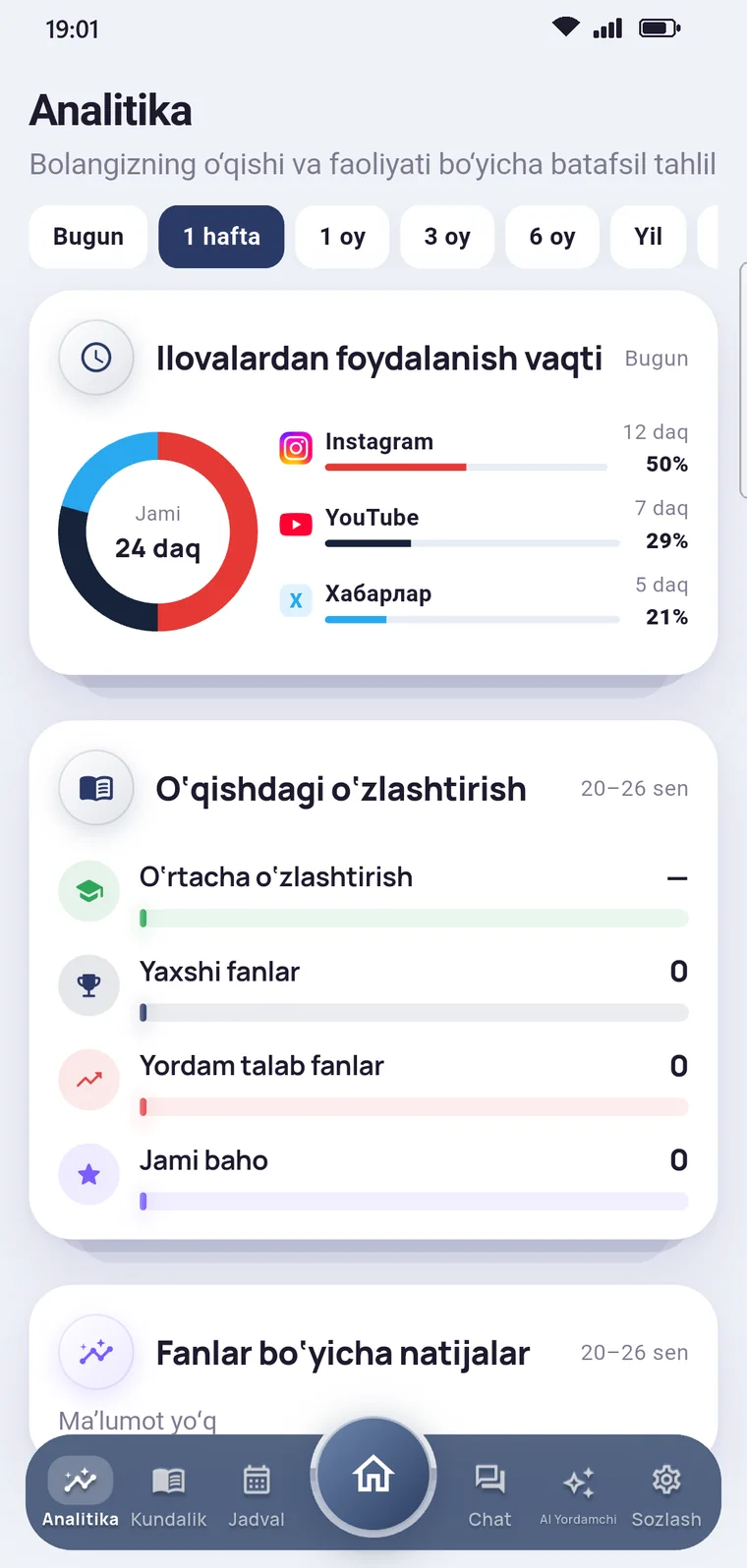
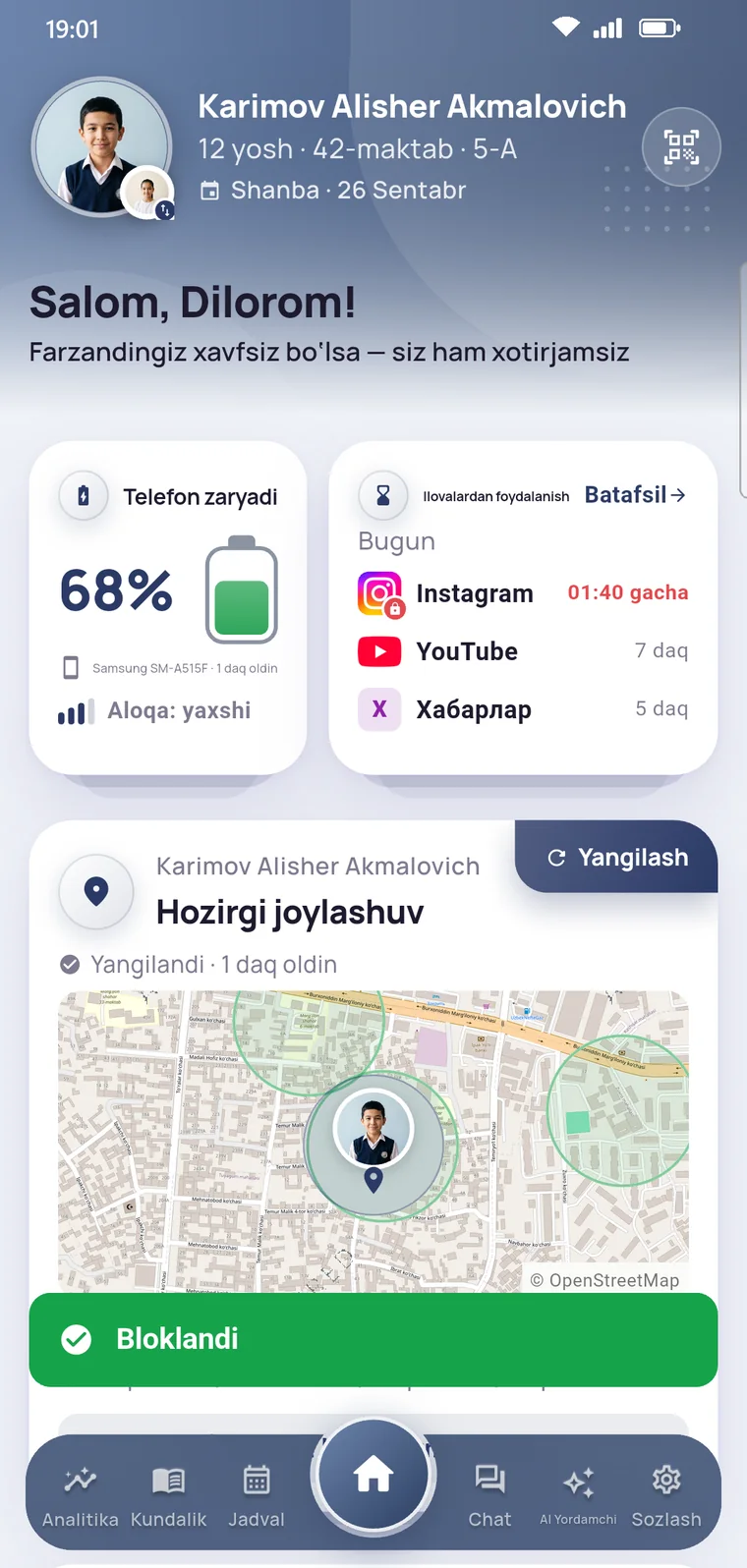
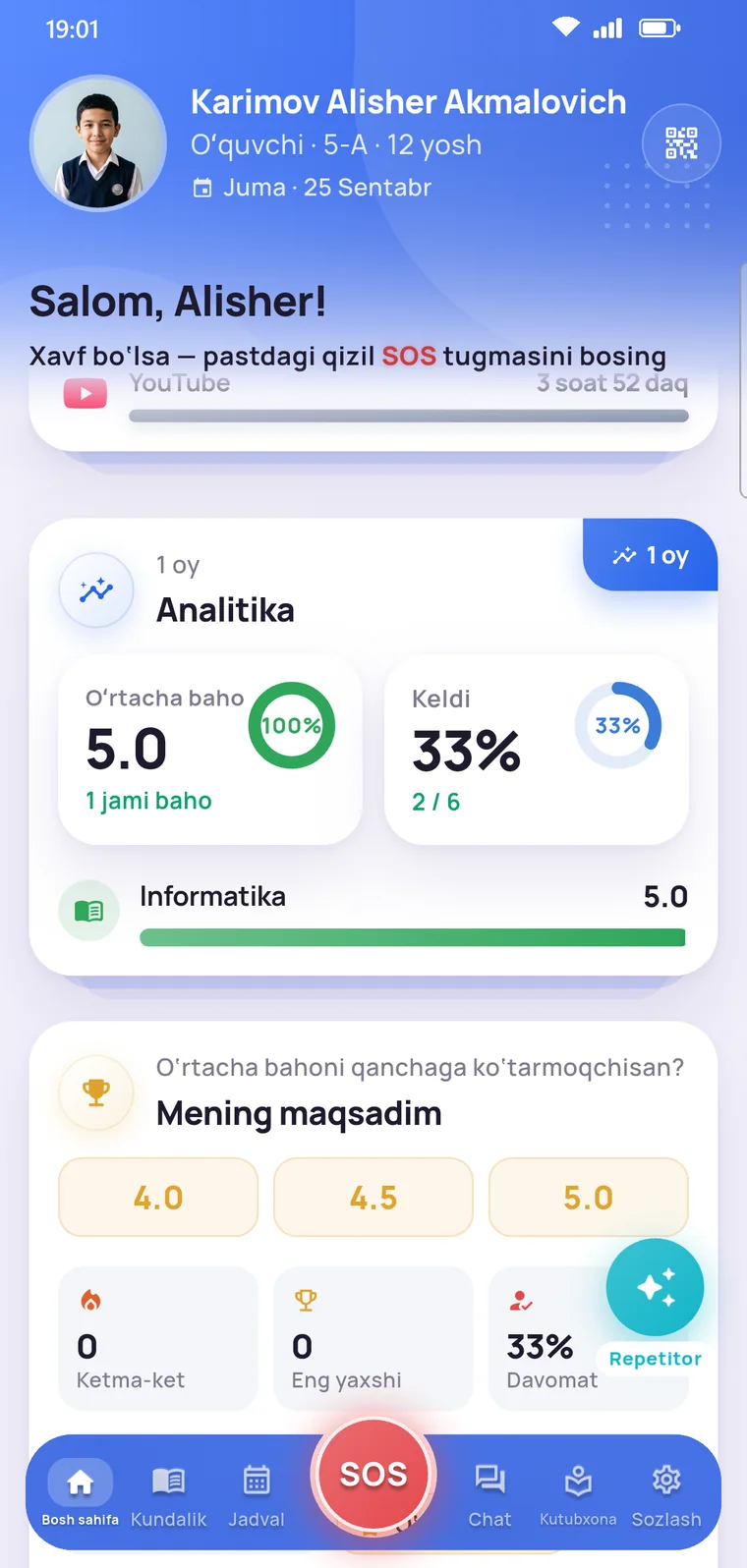
The essentials on the home screen, details one tap away.
Child safety
Location, safe zones and SOS. Unnoticeable on a quiet day, instant when it matters.

Today’s route
Sample map: Tashkent, OpenStreetMap data. Parents name the zones themselves: home, school, club, grandparents’ house.
You see where your child is on the map — if they have allowed it.
Home, school, clubs. You get a notification when your child enters or leaves a zone.
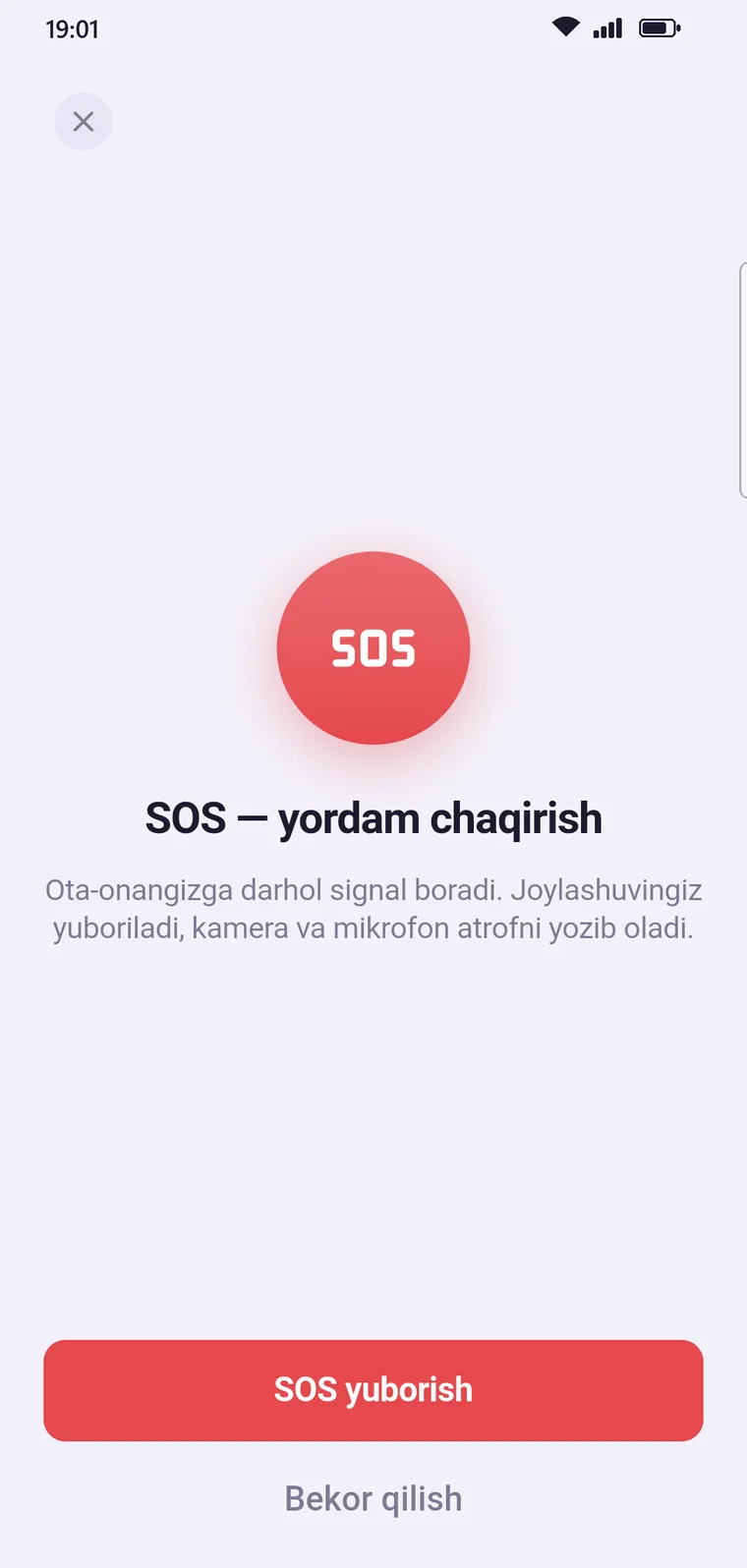
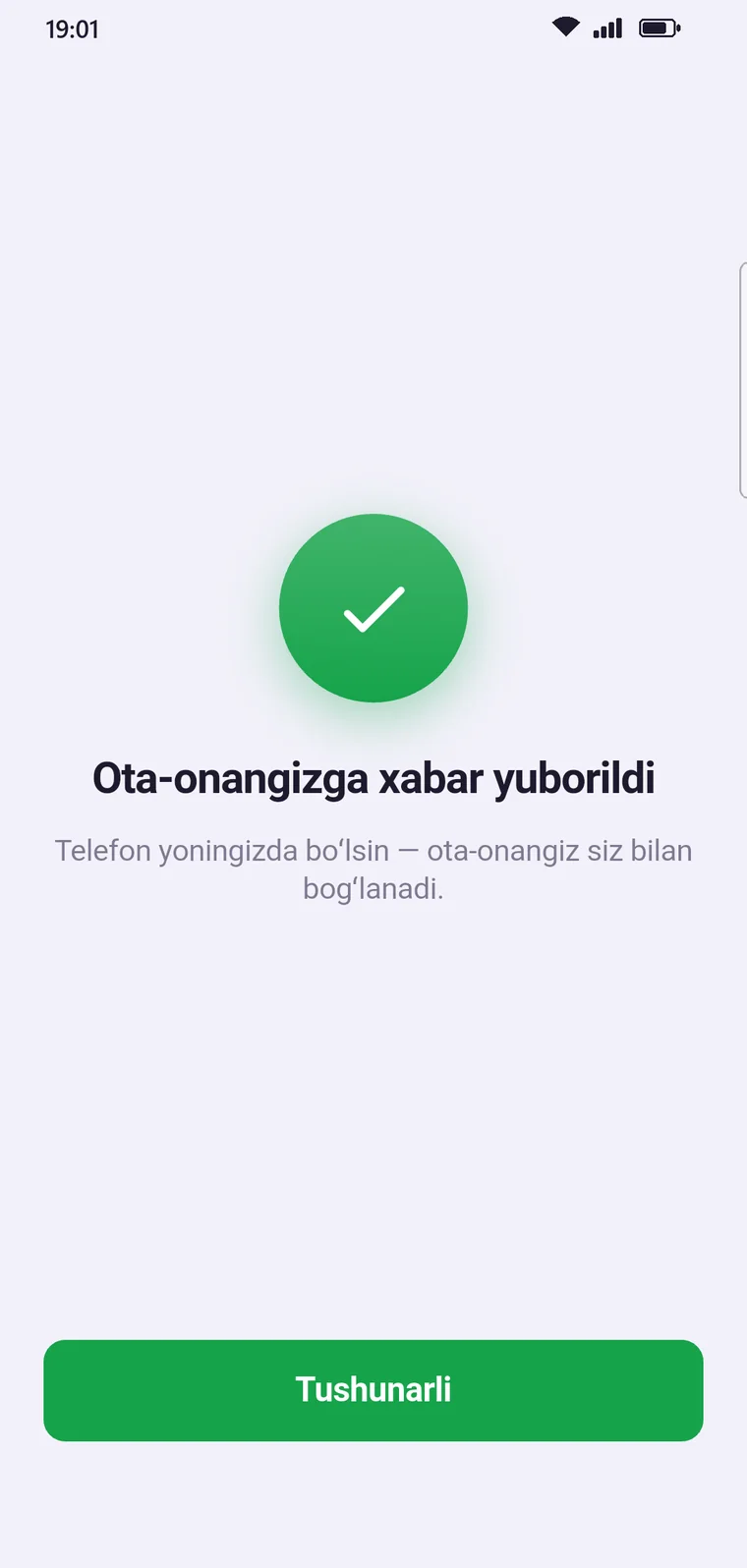
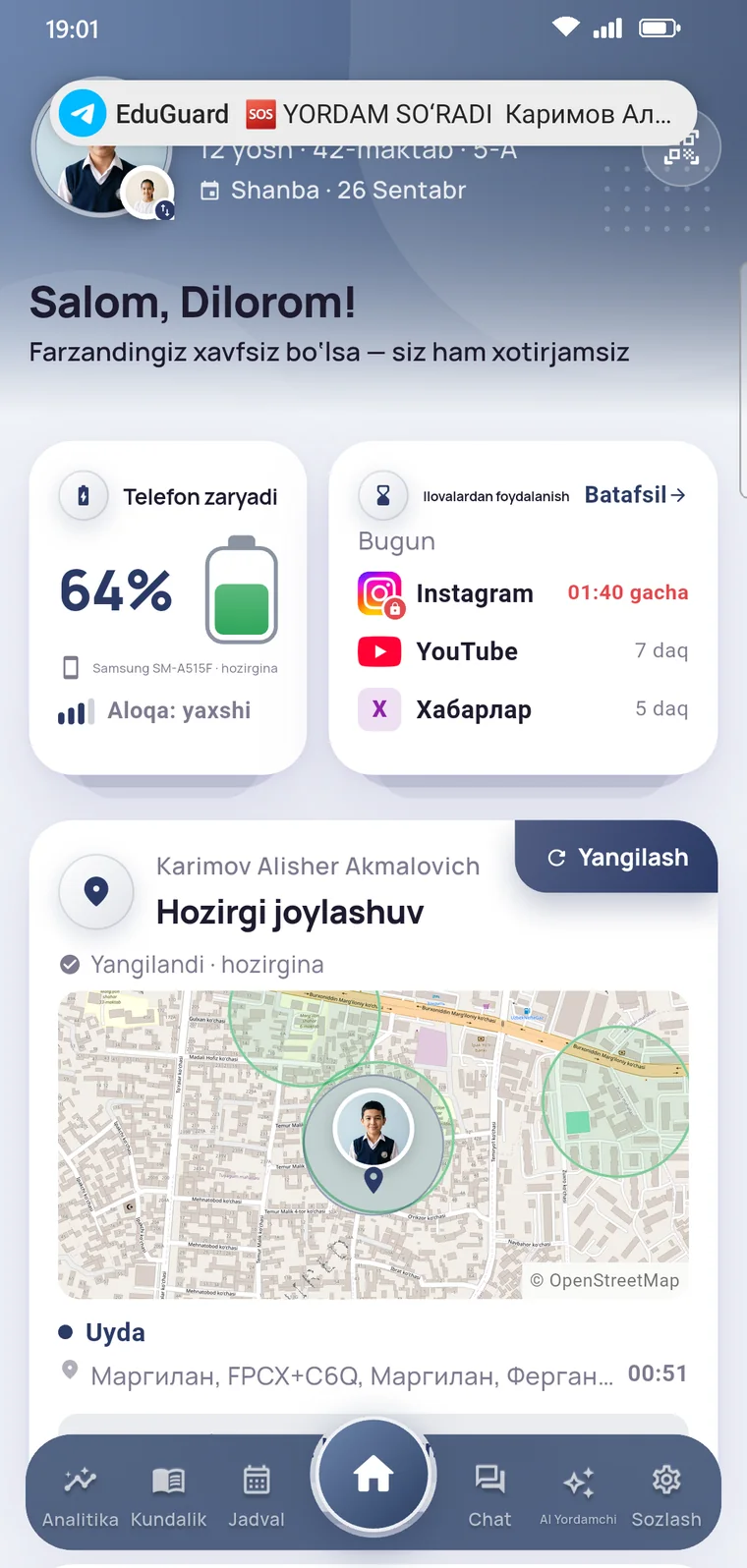
One button: the alert and location reach parents instantly.
Where your child was today and when they got there.
The battery level is always visible on the home screen.
You always see exactly when the data came in.
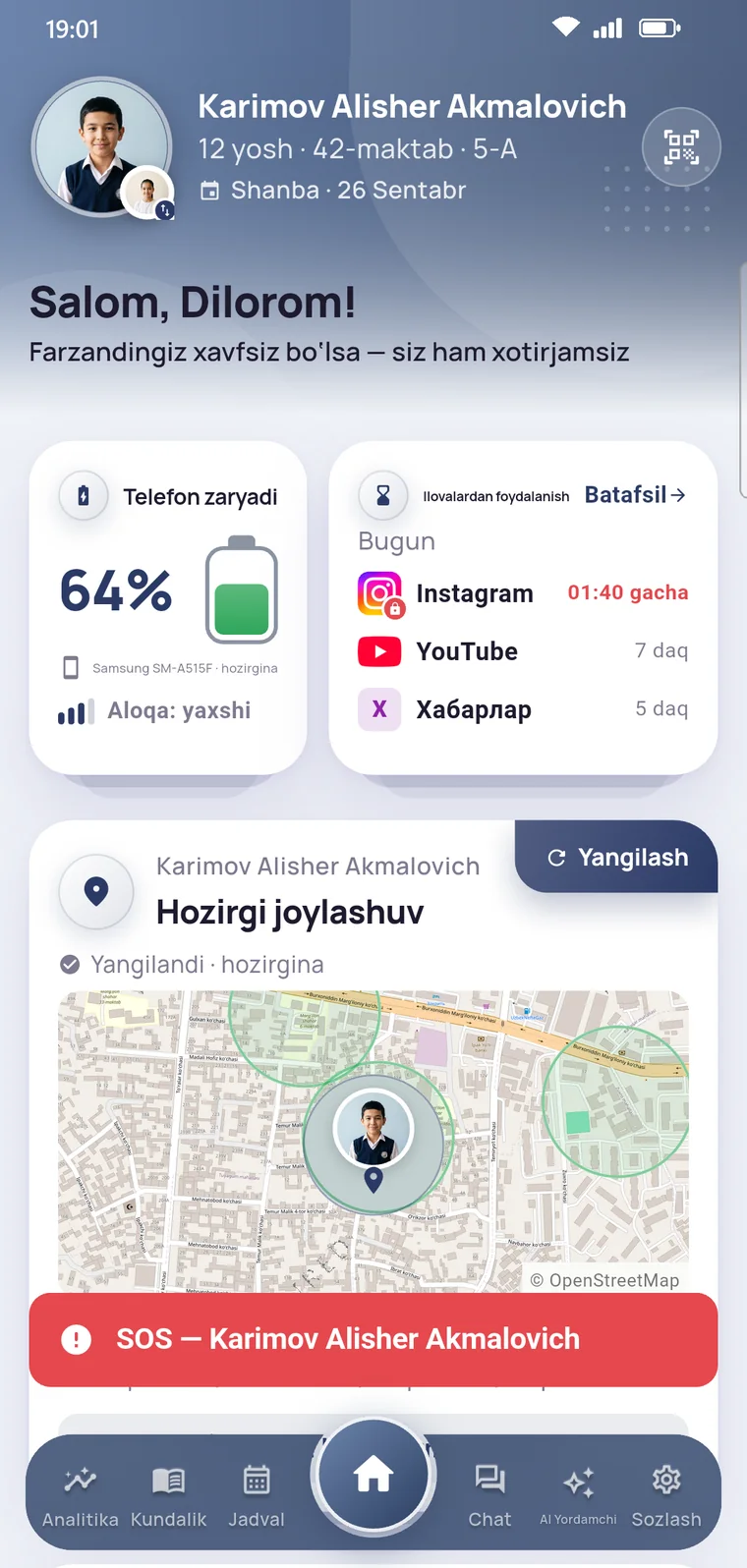
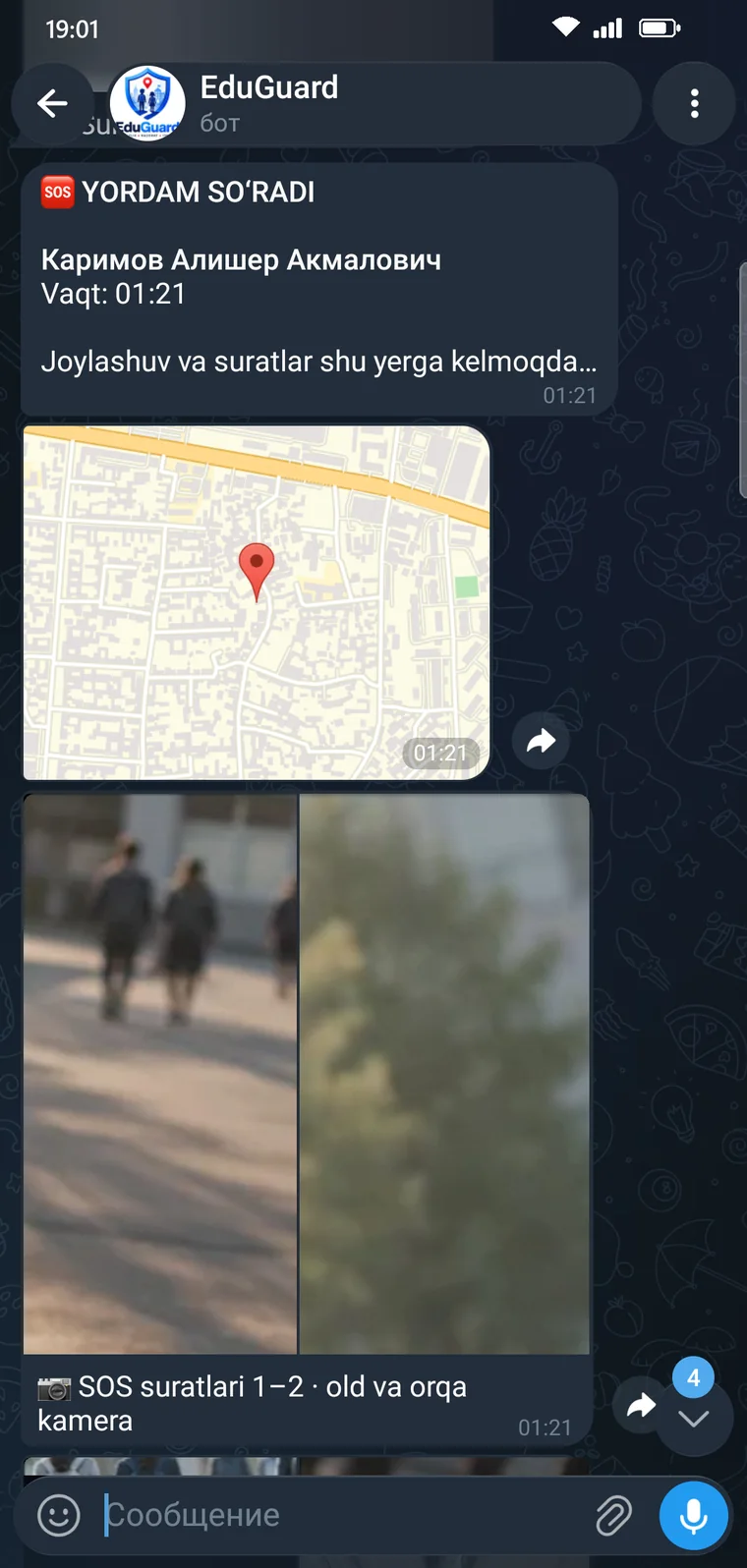
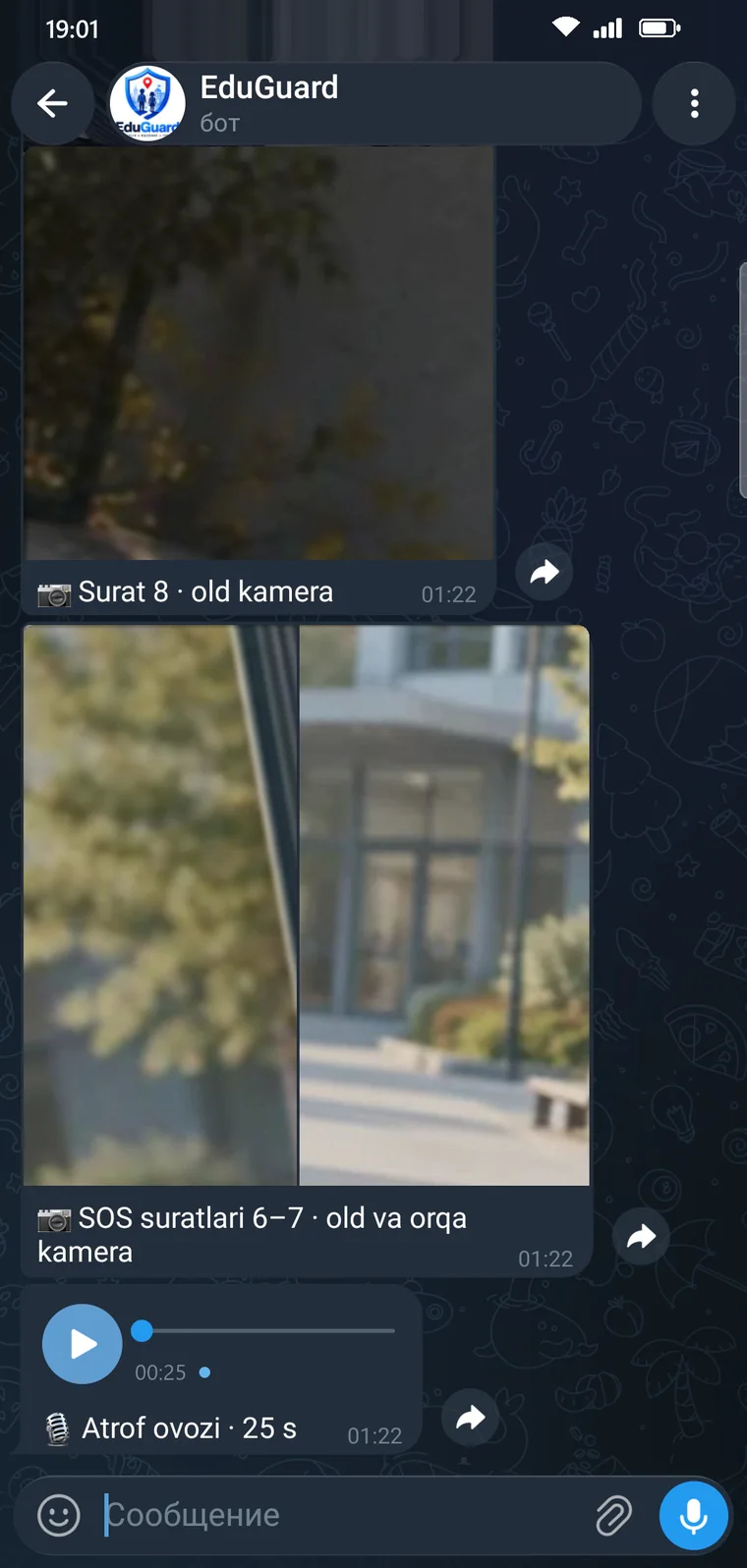
SOS demo
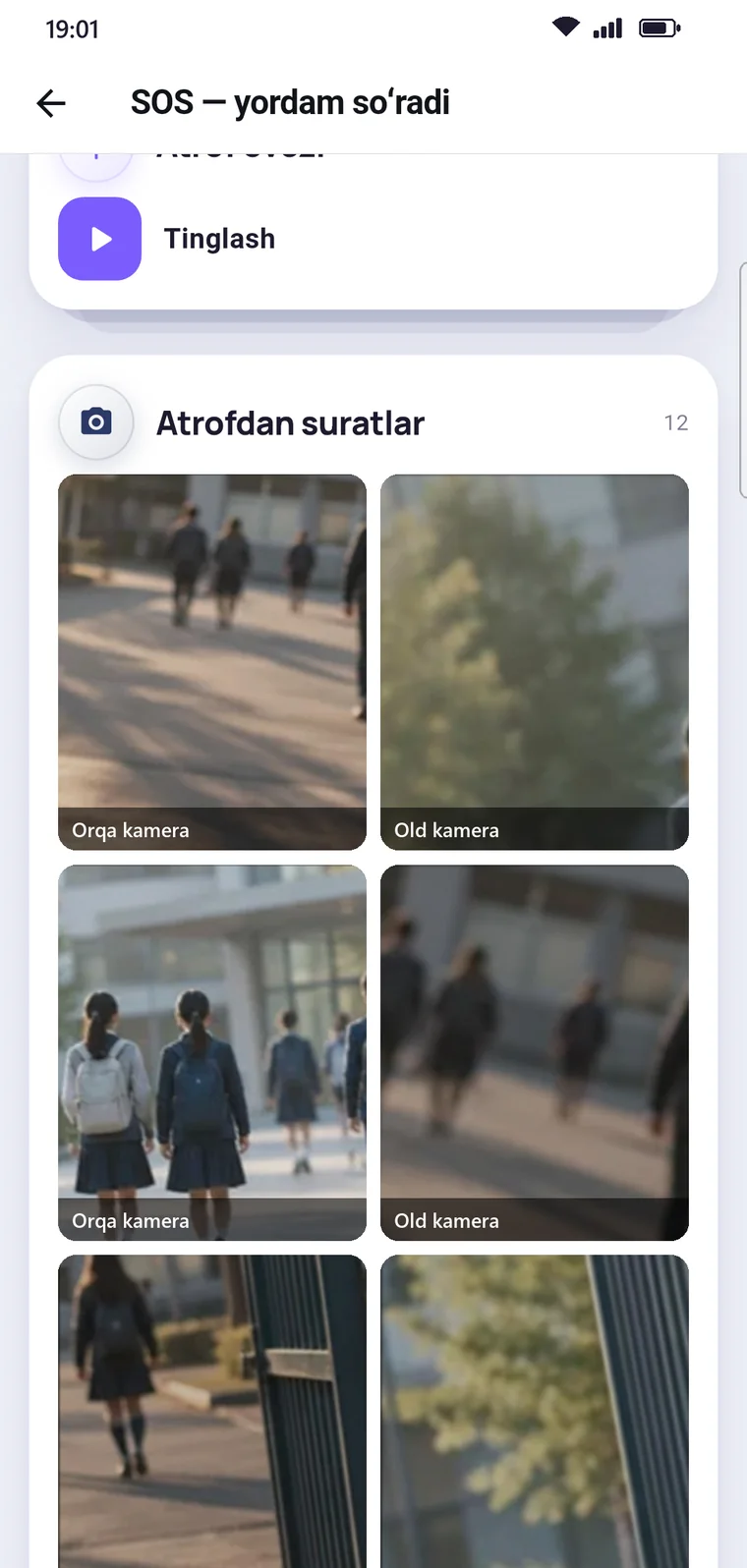
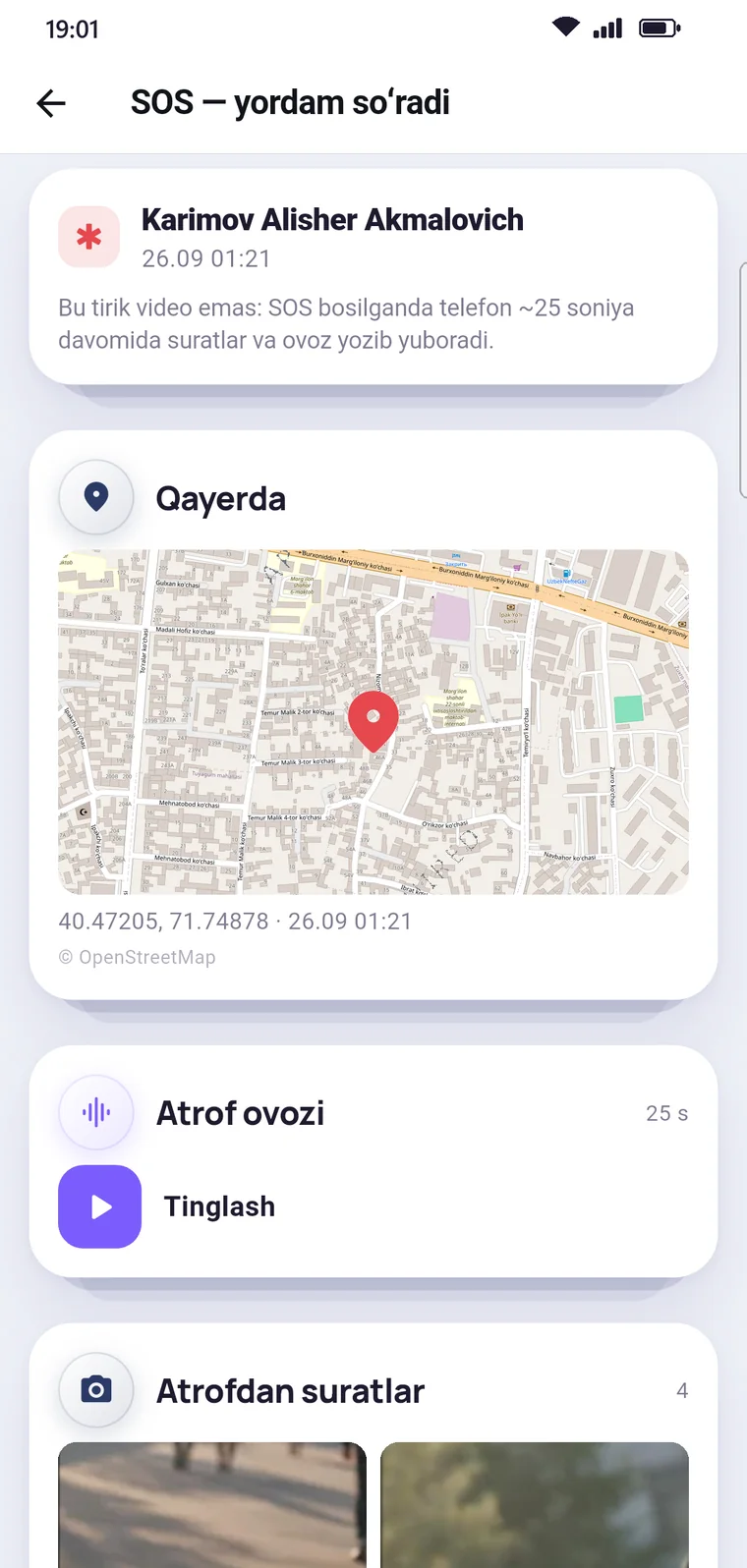
Your child taps the button and confirms. Location, audio and photos reach you — in the app and on Telegram.
Demo: the screens are from the app; nothing is sent to anyone.
Academic progress
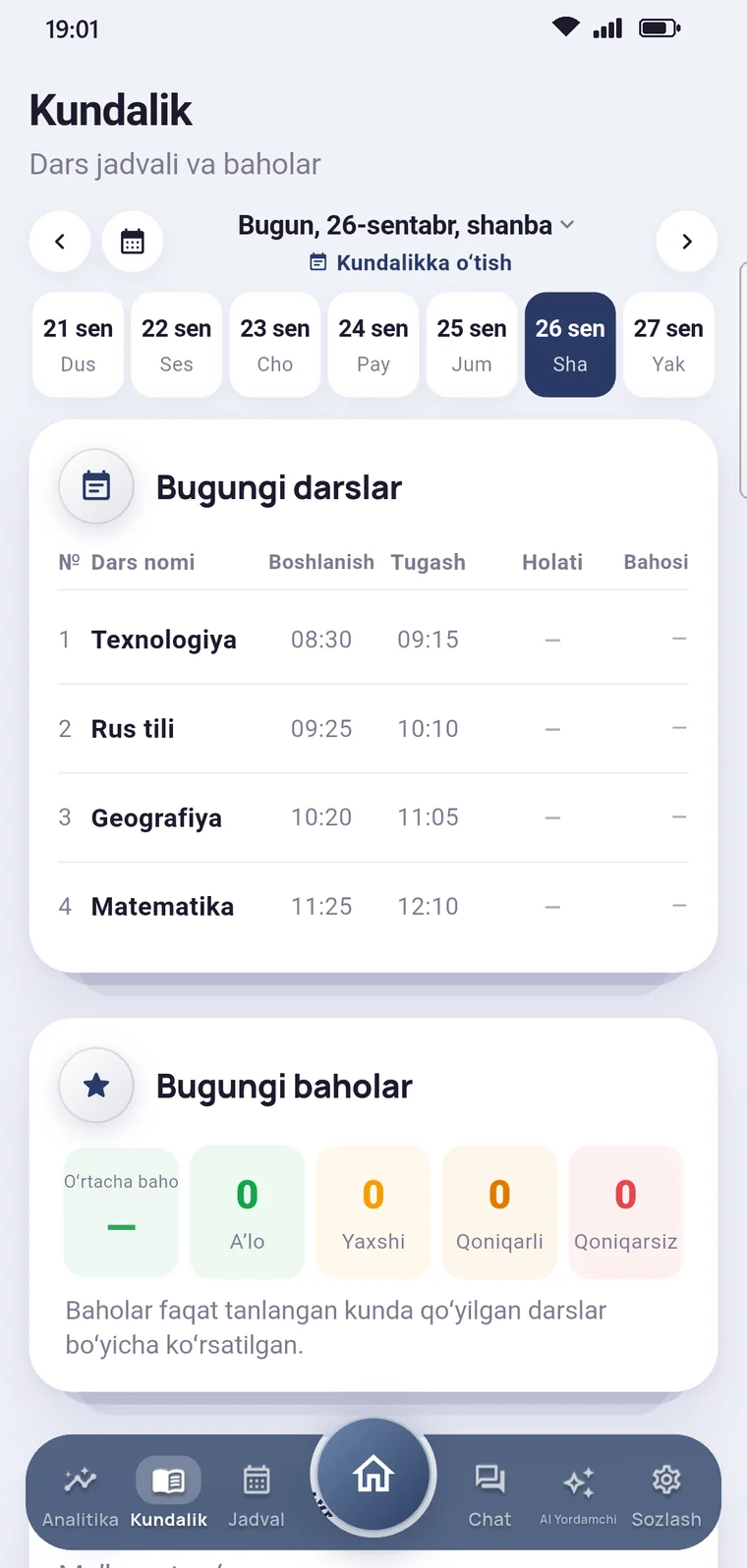
Grades, attendance and homework reach you as soon as the teacher enters them. A weekly AI summary pulls it all into one conclusion.
Strong results in Computer science and Mathematics. Two History grades are below 4 — reviewing the topic together would help. Attendance is good: one late arrival.
History and Geography averages are below 4.3. All three late arrivals were for the first lesson.
Grades rose steadily over the term. Four History homework assignments were not submitted — worth talking to the teacher.
Sample data. In the app, the numbers come from the grades and attendance entered by teachers.
For teachers
Attendance, grades and parent communication on the phone. Classes, accounts and announcements in the school panel.
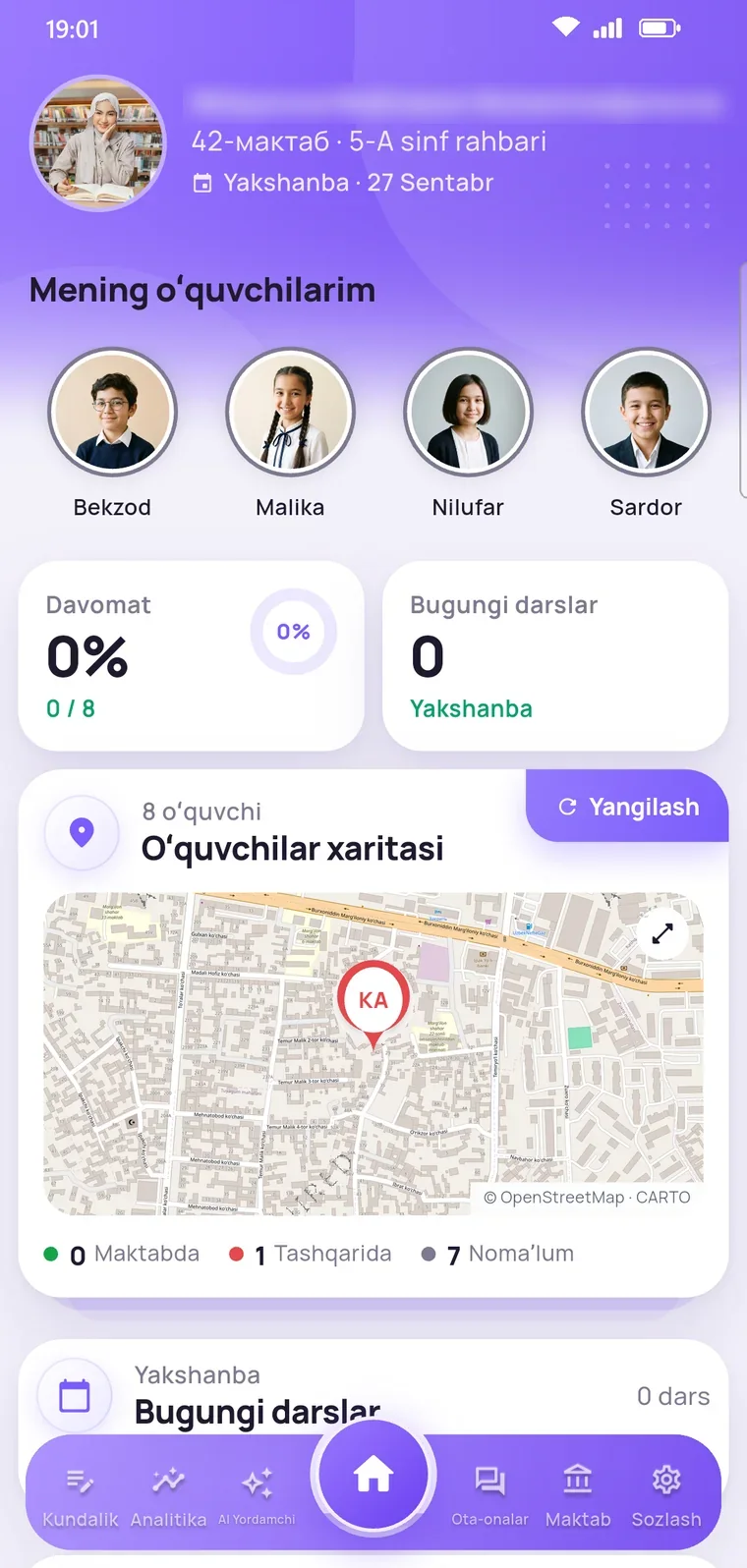
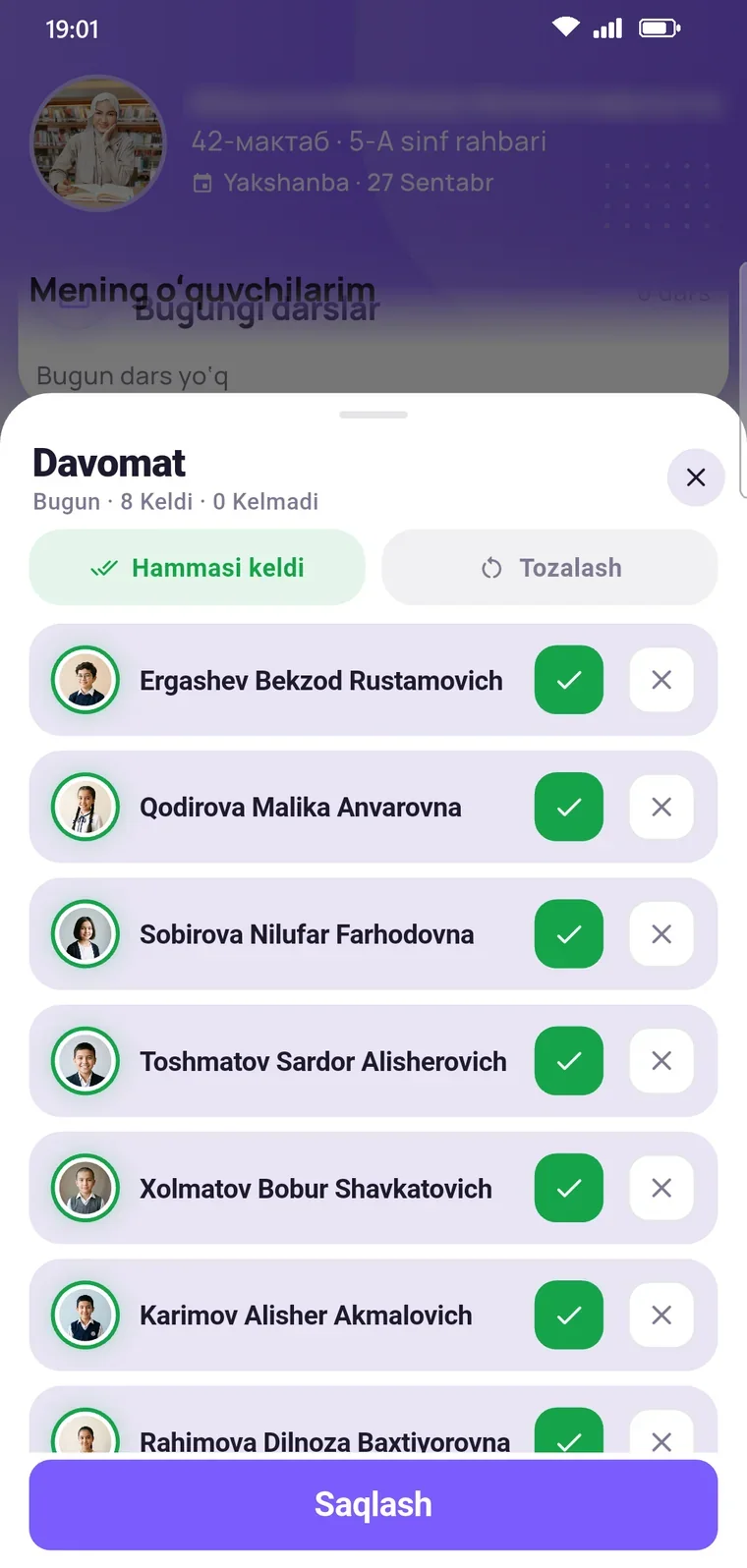
Mark each student in one tap. One button for “Everyone’s here”.
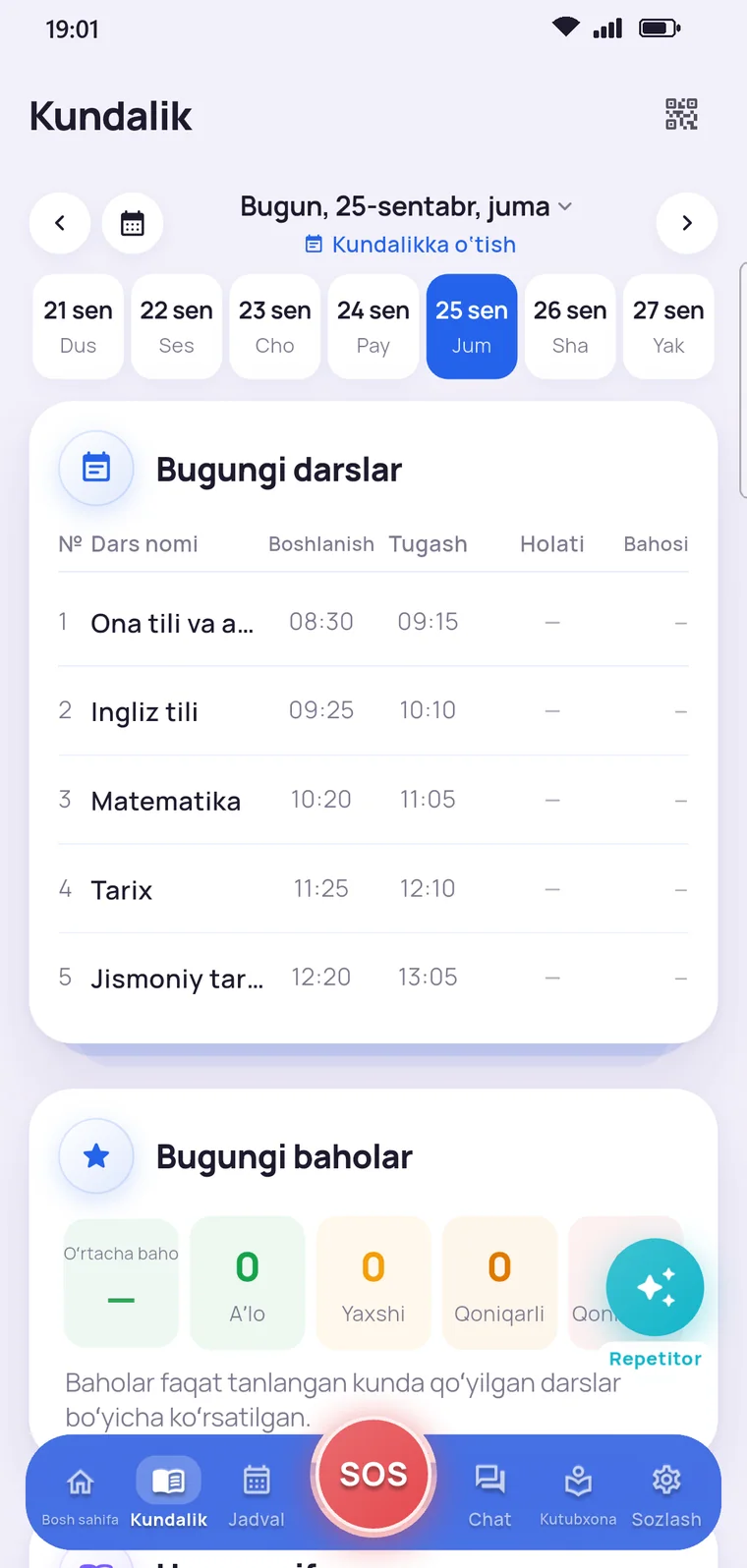
Grades and homework for each lesson, right in the diary.
Announcements, class chat and video calls.
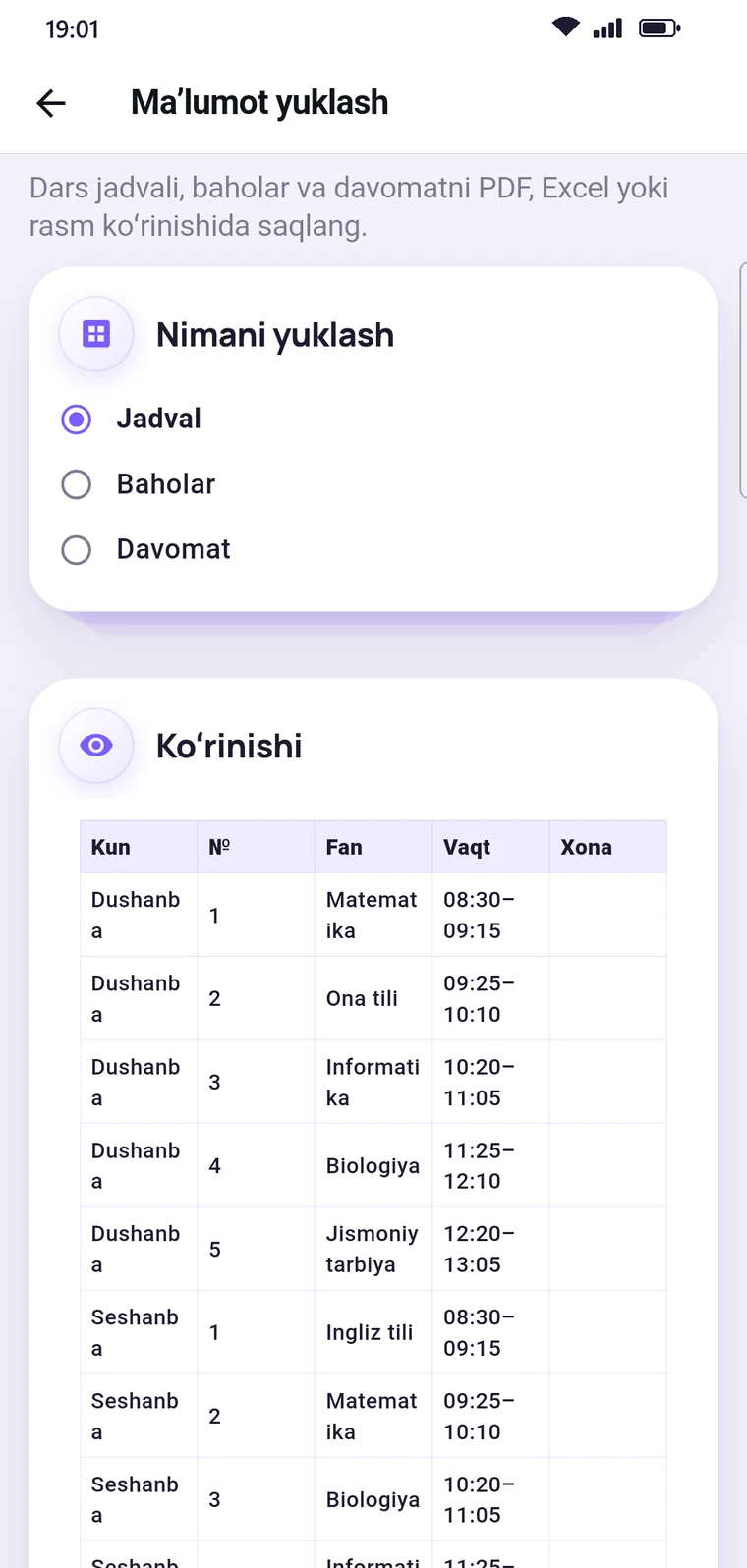
Timetables, grades and attendance as PDF or Excel files.
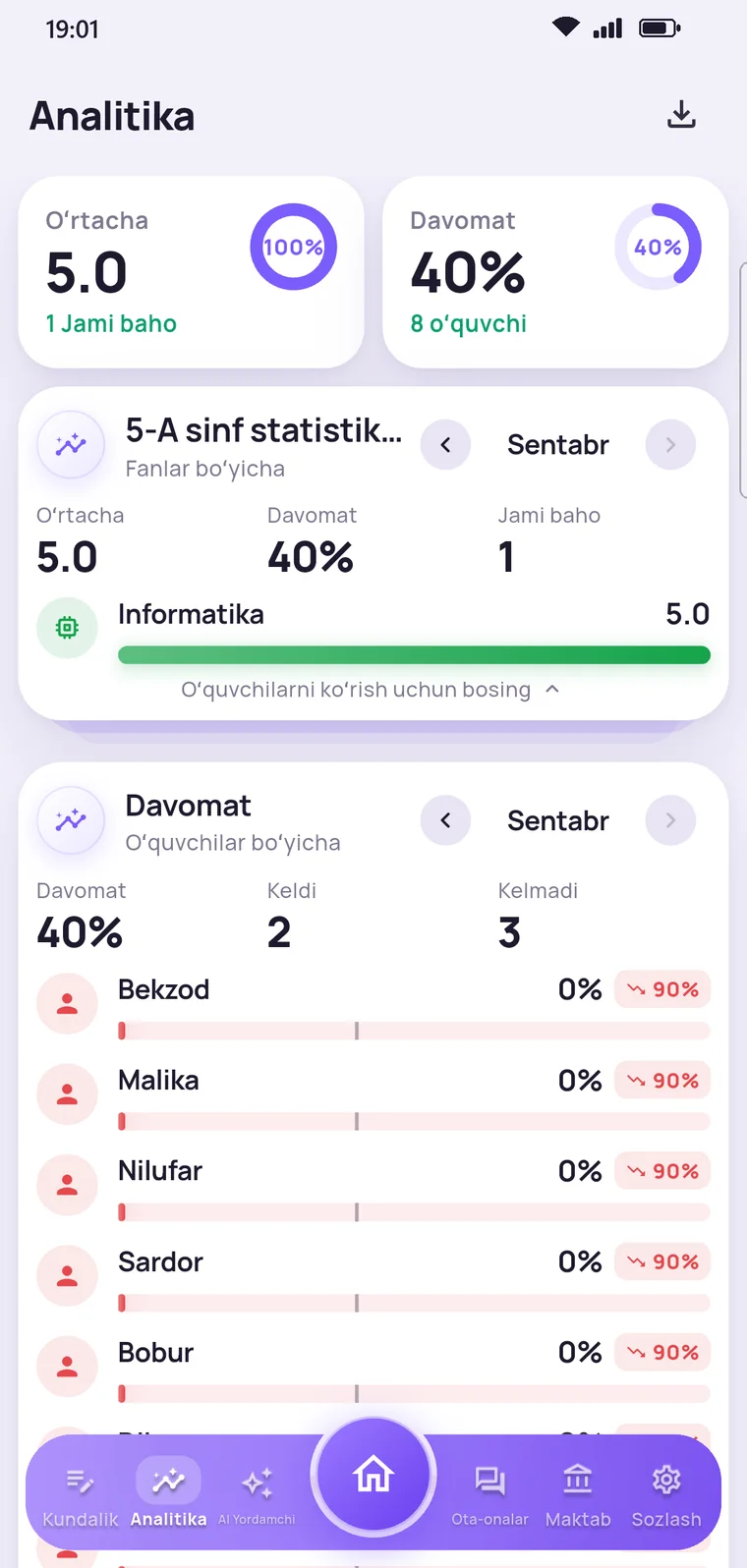
Average grade, attendance rate and each student’s results.
In the browser: classes, accounts and announcements.
AI assistant
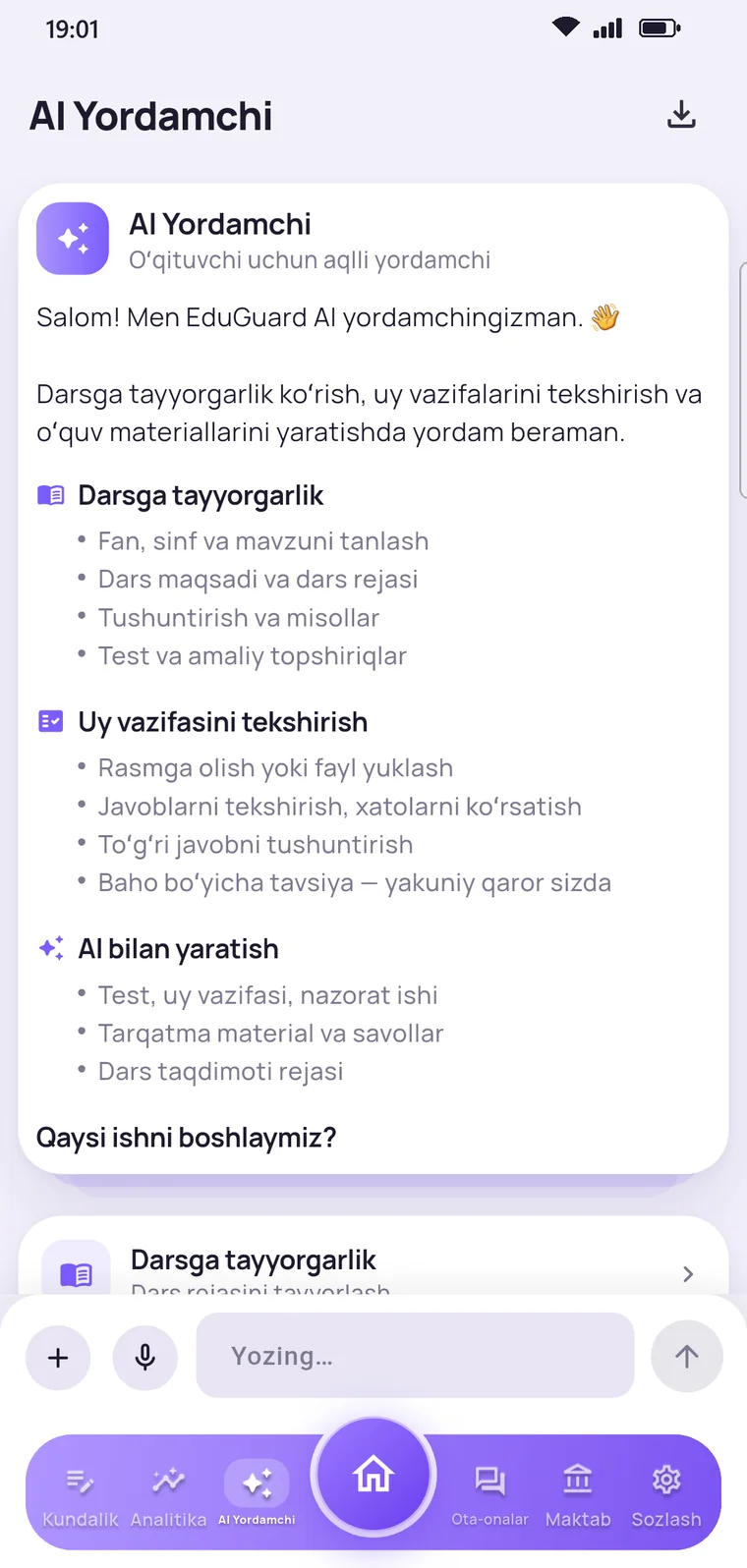
Pick a subject, grade and topic, and the AI prepares a lesson plan, a test or a handout. The final call is always the teacher’s.
Topic: adding fractions with the same denominator.
Goal: students add fractions with the same denominator and simplify the result.
Denominators are not added: 4/5 + 3/5 = 7/5 = 1 2/5
1. 3/10 + 4/10 = ?
2. Which fraction equals 1?
3. 5/12 + … = 11/12
7 more questions
1/5 + 2/5 · 3/9 + 4/9 · 2/11 + 7/11
Alisher read 2/7 of a book on Monday and 3/7 on Tuesday. What part of the book did he read in two days?
Write two fractions with denominator 8 that add up to 1. How many such pairs are there?
Grading: 5 — all correct · 4 — one mistake · 3 — two mistakes
If the denominators are the same, add the numerators and keep the denominator.
a/c + b/c = (a + b)/c2/5 + 1/5 = 3/5 · 4/9 + 5/9 = 9/9 = 1
1/8 + 3/8 = … · 5/12 + 4/12 = … · 7/10 + 3/10 = …
Inside the app
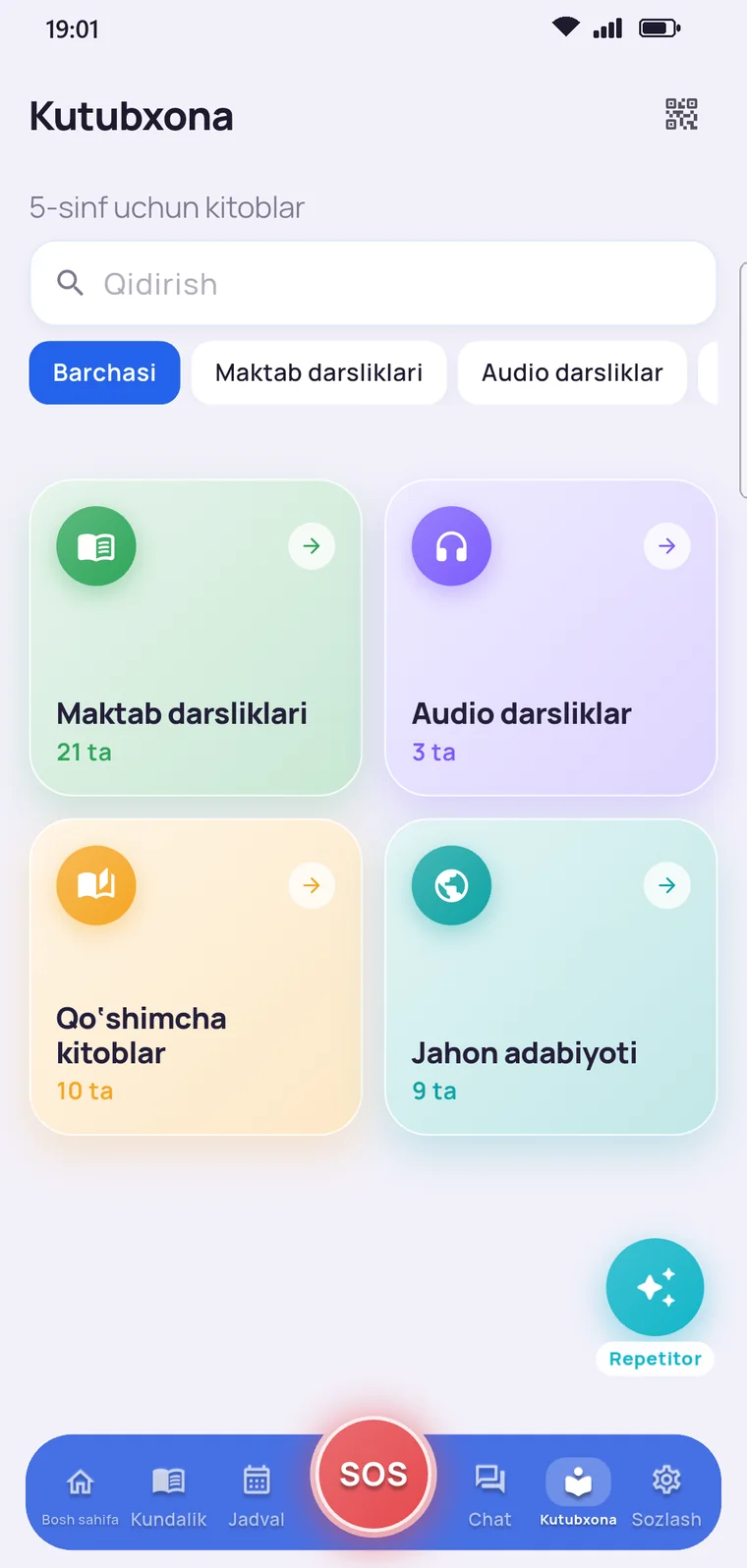
Below are real screenshots of the EduGuard app.
How it works
Install the EduGuard app and choose your role. The homeroom teacher approves a student’s request.
Scan the QR code in your child’s app. The key is valid for 5 minutes and works only once.
Mark your zones and connect Telegram. Your child chooses what to share.
Arrived at school, a new grade, an SOS — each alert arrives right on time.
Safety and privacy
Parents can check this in the app too: the “Who sees my child?” page has the same rules.
| Who | Location | Screen time | SOS photos and audio | Grades and attendance |
|---|---|---|---|---|
| Parent | With the child’s permission | With the child’s permission | With the child’s permission | Yes |
| Homeroom teacher | With the child’s permission | No | No | Yes |
| Subject teachers | No | No | No | Yes |
| No one else | EduGuard does not share or sell data to third parties. | |||
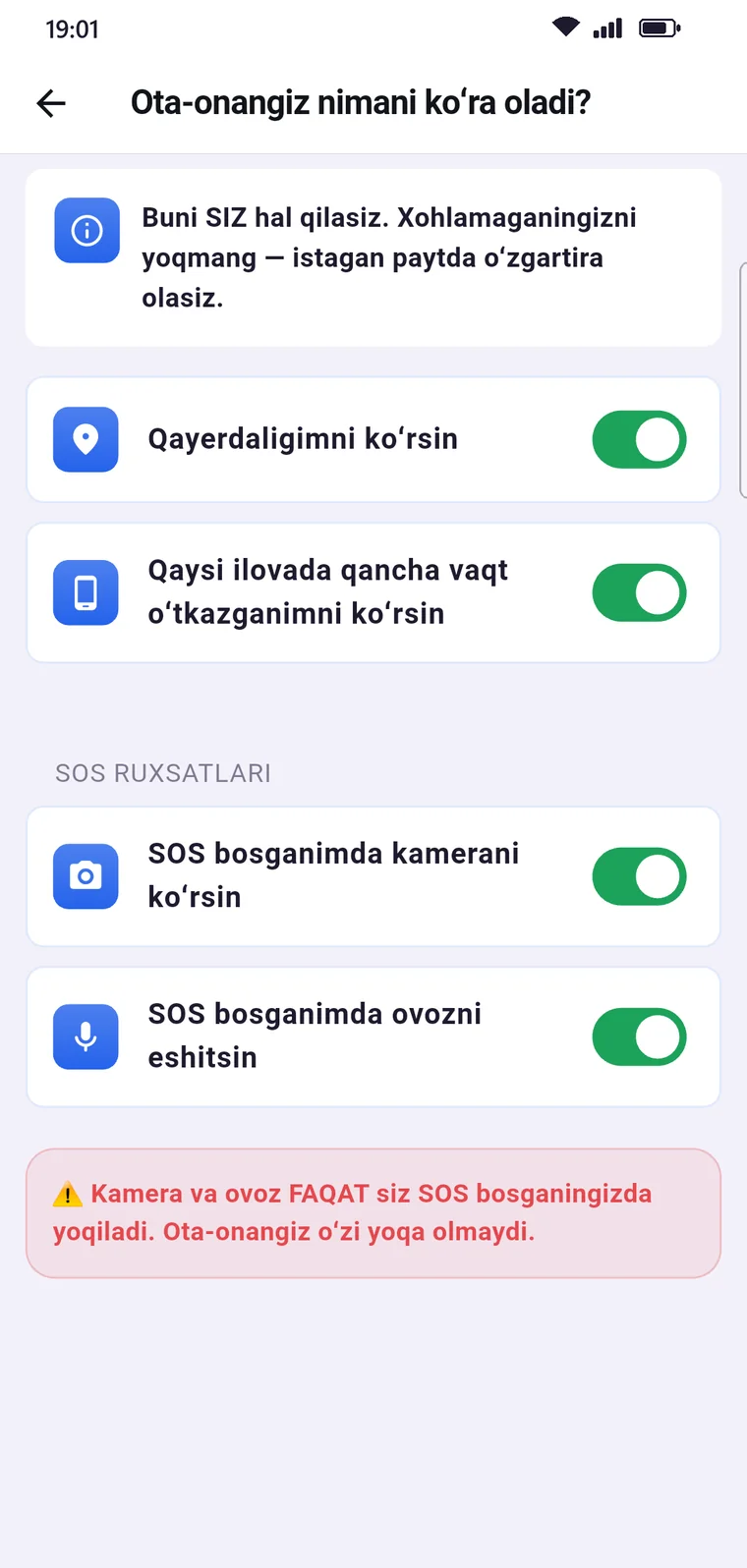
Only the student can turn on location, screen time and the SOS camera — and can change it at any time.
At all other times the camera and microphone are off. Parents cannot turn them on remotely.
Data is never sold or shared with third parties.
Tell the school, and the account and all its data will be deleted.
Pricing
All features free for 3 days. Then you subscribe — and can cancel at any time.
Billed monthly
Get started3-day free trial · Payment: Payme, Click or Paynet
FAQ
Can’t find an answer? Message us on Telegram — a real person will reply.
An app for schools and families. Parents see their child’s location, grades and attendance. Students see their timetable and diary, and teachers work with attendance, grades and an AI assistant. All on one platform.
Parents, students and teachers, each with their own app. School leaders get a web panel: classes, accounts and announcements.
On the map on the home screen. Your child turns location on: their app has a “See where I am” switch. It’s the child’s consent — neither the school nor we can change it.
If the phone turns off and on again, tracking restarts on its own.
Your child taps the SOS button and confirms. Your phone gets a loud alert, the location opens on the map, and a message also goes to Telegram. If your child has allowed it, photos from the front and back cameras and the surrounding audio arrive too.
A place you mark on the map: home, school, a club or the grandparents’ house. When your child enters or leaves it, you get a notification.
They take attendance and enter grades on their phone, send announcements to parents and chat in the class group. They export timetables, grades and attendance to PDF or Excel. The AI assistant helps prepare lesson plans, tests and homework.
It prepares lesson plans, tests, homework, assessments, handouts, presentation plans and questions for teachers. It checks homework from a photo and points out mistakes. The teacher sets the grade.
For parents, the AI sends a weekly summary: grades, attendance and events in one short conclusion.
Your child chooses what to share and can change it at any time. The camera and microphone work only when SOS is pressed. Data is not used for advertising, not sold and not shared with third parties. To delete an account, contact the school or us: here’s how.
With EduGuard, follow your child’s education and safety from one place.
Message us on Telegram: we’ll help you install the app and connect to your child.
Are you a school leader? To connect your school, message the same number.